
Skip to content
Edit Text
  • Change a date in an imageMove a schedule, flyer or timestamp forwardEdit numbers and pricesPrices, quantities, times and phone numbers
  • Remove text from image
  • Pricing
Checking…
  • Dates
  • Numbers
  • Remove text
  • Pricing
  1. Home
  2. /Blog
  3. /
  4. How-to

How-to

How to Edit Text in a Screenshot Without Rebuilding the Design

Screenshots are useful for product demos, tutorials, documentation, and marketing pages — but updating the text inside a finished screenshot can be frustrating. If the screenshot is a JPG or PNG, the words are usually part of the image rather than editable text layers, so you cannot always click the text and type something new.

September 29, 2026·8 min read

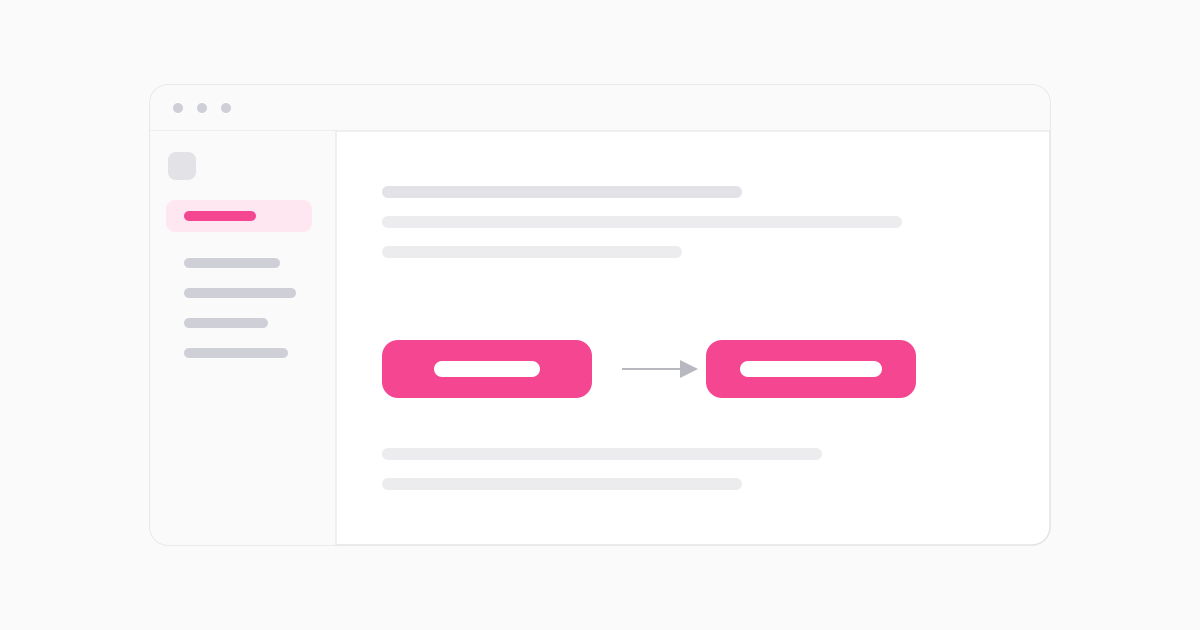
A browser window wireframe where only the label inside one button is replaced, while the rest of the interface stays identical

The easiest workflow depends on your goal:

  • Use Canva if you want to redesign the screenshot or add visual elements.
  • Use Photoshop if you need detailed manual control.
  • Use a dedicated AI image text editor if you only want to replace existing words quickly.

Quick answer

For a simple text replacement, upload the screenshot, enter the original text exactly as it appears, enter the replacement text, and generate an updated image. Always review the result before publishing it.

Have the screenshot and the two strings ready? The replacement itself takes a few seconds.

Edit Text in a Screenshot

Why screenshot text is difficult to edit

A screenshot is usually a flattened image. Even though the interface looks like it contains buttons, menus, labels, and text fields, those elements are often stored as pixels after the screenshot is captured. There is no hidden layer you can reopen — the letters are painted into the same grid as the button behind them.

This means the editing tool has to replace the visible text while preserving nearby details such as:

  • Button backgrounds.
  • Borders and shadows.
  • Icons.
  • Spacing and alignment.
  • Status bars.
  • Interface colors.
  • Background panels.

The shorter and clearer the text, the easier it is usually to make a convincing replacement. A simple button label is generally easier to edit than small text over a busy interface, because there is less surrounding detail for the tool to reconstruct.

Common reasons to edit text in a screenshot

People edit screenshot text to:

  • Correct a typo.
  • Update a button label.
  • Change a price or plan name.
  • Replace an outdated feature name.
  • Update a date or version number.
  • Localize a short interface phrase.
  • Prepare a mockup for a presentation.
  • Update an image in a tutorial or article.

Use this responsibly

Only edit screenshots for legitimate purposes, such as your own product, design, tutorial, presentation, or marketing material. Do not alter screenshots of official records, payments, legal documents, or other information in a misleading way. Our acceptable use policy sets out the same rule for every tool on this site.

Method 1 — Use an AI image text editor

A dedicated AI image text editor is often the shortest workflow when the screenshot is already complete and you only need to replace one or more known words. It behaves like a focused screenshot text editor rather than a full design canvas.

Use this method when:

  • You know the original text exactly.
  • The screenshot is a JPG, PNG, or WebP.
  • You want to preserve the general interface design.
  • You do not need to redesign the whole screenshot.
  • You want to avoid rebuilding the screenshot manually.
  1. 01

    Upload the screenshot

    Use the clearest and highest-resolution version available. Avoid screenshots that have already been resized or re-compressed several times.

  2. 02

    Enter the original text

    Type the text exactly as it appears. Keep the same capitalization, numbers, and punctuation where possible. Example — original text: “Subscribe Now”.

  3. 03

    Enter the replacement text

    Type the words you want to show instead. Example — replacement text: “Start Free Trial”.

  4. 04

    Generate the updated screenshot

    Generate the result and inspect the changed area.

  5. 05

    Review before downloading

    Check the font appearance, alignment, button shape, spacing, shadows, and any nearby interface details.

This editor is designed for exactly this workflow: enter the text that appears in the screenshot, enter the replacement text, and generate an updated image.

Try Screenshot Text Replacement

What this method does not do

The current workflow requires manual entry of the original and replacement text. It does not automatically detect every text element or provide click-to-edit layers, and it will not rebuild an entire interface for you.

Method 2 — Use Canva

Canva can be useful when you want to edit the screenshot and continue designing around it. A typical workflow may involve uploading the screenshot, using an image text-editing feature where available, and then adjusting the new text manually.

Canva is a good choice if you want to:

  • Add new labels or callouts.
  • Redesign the screenshot for a presentation.
  • Add arrows, highlights, or annotations.
  • Combine the screenshot with other graphics.
  • Create multiple visual variations.

The limitation: if your goal is only to replace one short phrase, Canva may involve more design controls than you need. The result may also need manual adjustment if the original interface uses a special font, tight spacing, or unusual text treatment.

Method 3 — Use Photoshop

Photoshop gives you the most manual control, especially when the screenshot requires precise cleanup. A typical flattened-screenshot workflow may include:

  1. 1.Duplicating the original image.
  2. 2.Selecting the existing text area.
  3. 3.Removing or covering the original text.
  4. 4.Repairing the surrounding background.
  5. 5.Adding a new text layer.
  6. 6.Matching the font, size, color, spacing, and alignment.
  7. 7.Checking the result at full resolution.

Photoshop is a good choice when:

  • You need precise manual control.
  • The screenshot contains complex layers or effects.
  • The text has unusual styling.
  • You need to edit several visual elements.
  • You already work comfortably in Photoshop.

The limitation: for a single short text replacement, this workflow can take longer than necessary. It is powerful, but it requires more manual decisions at every step.

AI editor vs Canva vs Photoshop for screenshots

Which method fits which screenshot task

TaskAI image text editorCanvaPhotoshop
Replace one button labelVery suitableSuitableSuitable but more manual
Add arrows or annotationsNot the main purposeVery suitableSuitable
Rebuild the whole layoutNot suitableSuitableVery suitable
Match complex typography manuallyLimitedModerateVery suitable
Quick workflowVery suitableModerateUsually slower
Edit multiple image elementsLimitedSuitableVery suitable
Beginner friendlyVery suitableSuitableMore difficult
Preserve the overall screenshot designAI-assistedMay require adjustmentManual control

If the screenshot is already correct except for a few words, start with the focused AI workflow. If you want to redesign or annotate the screenshot, Canva may be more convenient. If you need complete control over the pixels and typography, Photoshop is the strongest option.

Best practices for editing screenshot text

For better results:

  • Use the original screenshot rather than a compressed copy.
  • Avoid screenshots that have been resized several times.
  • Enter the original text exactly.
  • Keep the replacement text close in length when possible.
  • Use a shorter replacement if the interface has limited space.
  • Check capitalization and punctuation.
  • Review the result at 100% zoom.
  • Compare the updated screenshot with the original.
  • Do not publish the result without checking nearby elements.

A concrete example: changing “Subscribe Now” to “Start Trial” is usually easier than replacing it with a much longer sentence, because the button has limited space and the surrounding pixels have to stay put.

How to choose the right method

Choose the AI image text editor when you already have a finished screenshot and only need to replace known words. Choose Canva when the screenshot is a starting point for a new design. Choose Photoshop when the edit is part of a larger retouching job or when the text sits over complex artwork.

What is the actual job in front of you?

  • Replace a few known words and keep the design:AI image text editor
  • Redesign, annotate, or add elements:Canva
  • Retouch, mask, or match complex typography by hand:Photoshop

Frequently asked questions

How do I edit text in a screenshot for free?

Upload the screenshot to a dedicated image text editor, type the text exactly as it appears, type the replacement, and generate the updated image. The first edit on this site is free, so you can check the quality on your own screenshot before paying for anything.

Can I edit text in a screenshot on my phone?

Yes. The workflow runs in the browser, so you can upload a screenshot from a phone or tablet as long as you can select the file and type the two text strings.

Why can I not click the text in my screenshot?

Because a screenshot is a flattened image. Once the screen is captured, the buttons, labels, and text fields become pixels rather than separate editable layers, so there is nothing left to click.

Will the font match the original interface?

The tool aims to match the visual appearance of the original lettering, but it does not identify or export the original font file. Results vary with font, image quality, perspective, background, and how different the replacement length is.

Is it allowed to edit text in a screenshot?

For your own product, design, tutorial, presentation, or marketing material, yes. Editing screenshots of official records, payments, or legal documents in a misleading way is not allowed and is prohibited by our acceptable use policy.

If the screenshot is right except for a few words, you do not need to rebuild it. Upload it, enter the original text and the replacement, and generate an updated version in one pass.

Edit Text in a ScreenshotCompare Canva, Photoshop and AI editors

RELATED

Keep reading

  • Canva vs Photoshop vs an AI image text editor
  • Remove text from an image
  • Change a date in an image
Edit Text

Replace words already inside a finished image, compare the result with the original and download the edited file.

Contact ussupport@rewordimage.com

Tools

  • Edit text in image
  • Change a date in an image
  • Edit numbers and prices
  • Remove text from image

Site

  • Pricing
  • Blog
Reword Image

© 2026. All rights reserved.

Acceptable usePrivacy policyTerms of serviceRefund policyAbout