Large, isolated lettering
A shop sign or poster headline on a fairly even patch. This is the best case for removing text from a photo.


Upload a photo and the remover erases the lettering it finds, then rebuilds what sat behind it. This page is for removing text from an image, not replacing it with new wording.
Upload a photo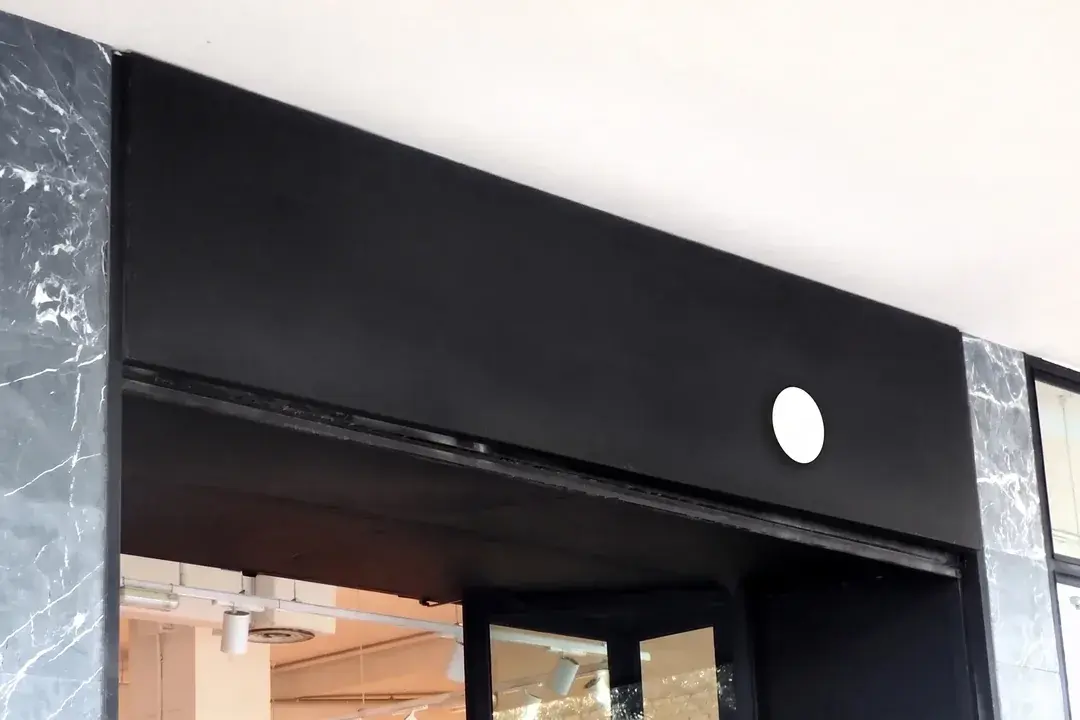 After
After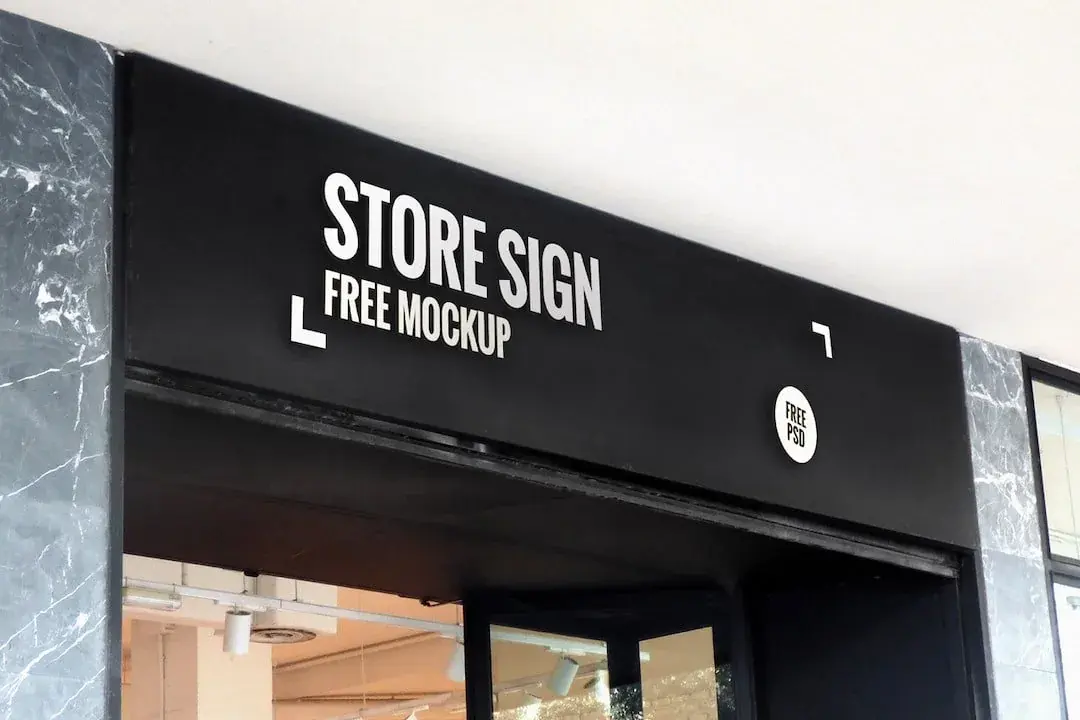 Before
Was:STORE SIGNremoved
Do not upload IDs, passports, bank statements, receipts, tickets or any official record. This is for cleaning lettering on your own signs, menus, posters and photos.
Quick answer
This page removes text from an image: upload a JPG, PNG or WebP and get back the same picture with the lettering erased and the background rebuilt. The remover detects the words on its own, so you do not type them. It is not Photoshop, not OCR, and not a generic object remover.
Three real situations
The shop-sign example is a real before and after. The menu and price-tag photos show the source lettering only.
AfterBeforeA sign that no longer applies
The board is still useful, the words are not. Erasing the lettering keeps the material and the lighting, instead of reprinting the whole sign.
Erase: STORE SIGNremoved

A menu heading that should go
A printed menu photo still has a heading you no longer want. Removing that line is different from typing a new dish name.
Erase: FOOD PRICE LIST
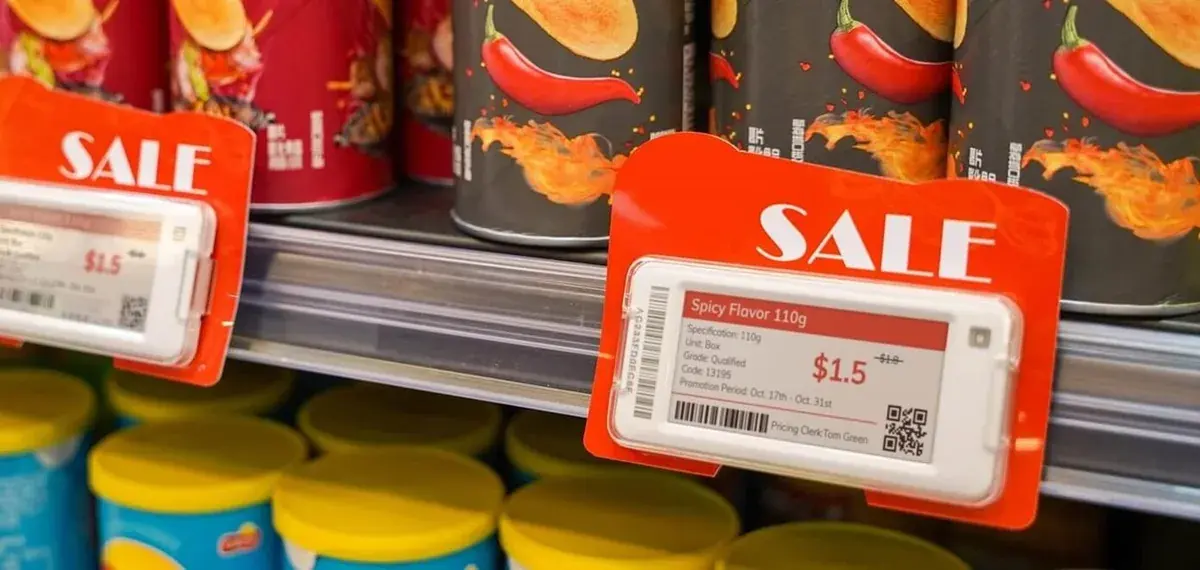
A sale mark that should disappear
A tag still has a SALE mark after the promotion ended. Erase that word and leave the rest of the product photo.
Erase: SALE
The basics
Removing text from an image means the letters go away and the pixels behind them are rebuilt. The photo stays. You are not adding a new caption, and you are not swapping STORE SIGN for a different headline.
That is a different job from editing text in an image. The replace editor needs a current string and a replacement string. This page needs neither: it erases every word it finds, so there is nothing to type.
It is also a different job from object removers such as Pixelcut, Clipdrop or cleanup.pictures. Those tools are built to lift people, logos or clutter. Lettering is flat paint on the surface, so a dedicated text remover is the right match when the thing you want gone is words.
Because the whole surface is cleaned in one pass, this page is the wrong tool if one line must stay and another must go. Crop first or edit the two halves separately.
What comes off cleanly
How the words sit on the photo decides how clean the gap looks. Three common cases, in order of how well they tend to come out.
A shop sign or poster headline on a fairly even patch. This is the best case for removing text from a photo.
Fine print, watermarks and several similar lines. The remover may miss a repeat. Check every line.
Brick, fabric, foliage, or type wrapped around a bottle. The rebuilt patch can look guessed. A second attempt may still fail.
Repeating textures, tiny type and letters wrapped around a product are the usual failure cases. Say so before you publish.
Three steps
Upload the picture, let the remover erase the lettering it finds, then review the rebuilt area before you use it.
Use a JPG, PNG or WebP of the sign, menu, tag or poster. Keep it under 10 MB.
There is nothing to type here. The model reads the picture, erases the words it detects and rebuilds the surface underneath them.
Compare the rebuilt background with nearby texture. If a ghost of the old letters remains, try again.
The remover finds the lettering on its own. You do not type the words to delete.
Before you publish
Put the result next to the original. You are checking a hole that was filled, not a new headline.
Read the area at full size. A faint stroke or leftover serif means the erase did not finish.
Logos, arrows and printed shapes can be caught along with the words. If a symbol you needed has been wiped, put the original back and edit by hand.
Brick, wood grain and fabric should continue through the patch. A smooth blob on a textured wall is a miss.
Halos, blur rings or a lighter rectangle around the old words are typical artifacts. Generate again if you see them.
If the picture still needs new words, use the main editor. This page is only for removing text from an image.
Where to stop
A blank patch is still an edit. Some pictures should not be cleaned this way.
IDs, passports, tickets, receipts, invoices, bank statements, contracts. Removing a number or a name from a record is fraud.
Expiry dates, warning labels, dosage, and inspection marks exist for a reason. Do not erase them.
If the words are the point of the picture, replace them on the homepage instead of deleting them here.
A different SERP
Search results for this query are full of tools that delete objects. Lettering is not an object. Use the row that matches the job.
| What you need | This page | Object removers |
|---|---|---|
| The job | Erase flattened lettering and rebuild the patch | Lift a person, logo or object from a scene |
| What you provide | Just the photo — the remover finds the words | Usually a brush or auto object mask |
| What you get | The same picture without those words | The scene without the selected object |
| Best for | Signs, menus, posters, tags, screenshots | People, products, clutter, watermarks as objects |
Questions
What this page does, how it differs from object removers, and exactly what it erases.
Yes. Upload the photo and the remover erases the lettering already in it and rebuilds the background. It erases the words it detects — there is no field for naming a single line.
Yes. Image, picture and photo are the same workflow. Upload a JPG, PNG or WebP and the remover does the rest.
No. Those tools remove objects. This page is for erasing text from an image. Use an object remover if the thing you want gone is not lettering.
Use the main editor. Replacing text and removing text are different tasks, so they live on different URLs.
JPG, PNG or WebP, 10 MB or smaller. There is nothing to type: the model reads the lettering from the picture itself.
Right away. The result opens in the workbench and can be downloaded as soon as it finishes — usually under a minute.
Yes, for lawful work you own or are authorized to edit, once a result exists. Do not erase text on documents, receipts or safety labels.
IDs, passports, tickets, receipts, invoices, bank statements, contracts, certificates, and food or medicine labels. Cleaning those is outside this tool.
Upload a JPG, PNG or WebP and get the lettering erased in one pass. Your first edit is free.