

Change Date in Image
Upload a JPG, PNG or WebP, enter the date shown and the replacement date, then preview and download the edited image. This workflow is for your own posters, invitations and schedules; verify every digit, separator and weekday.
Upload an image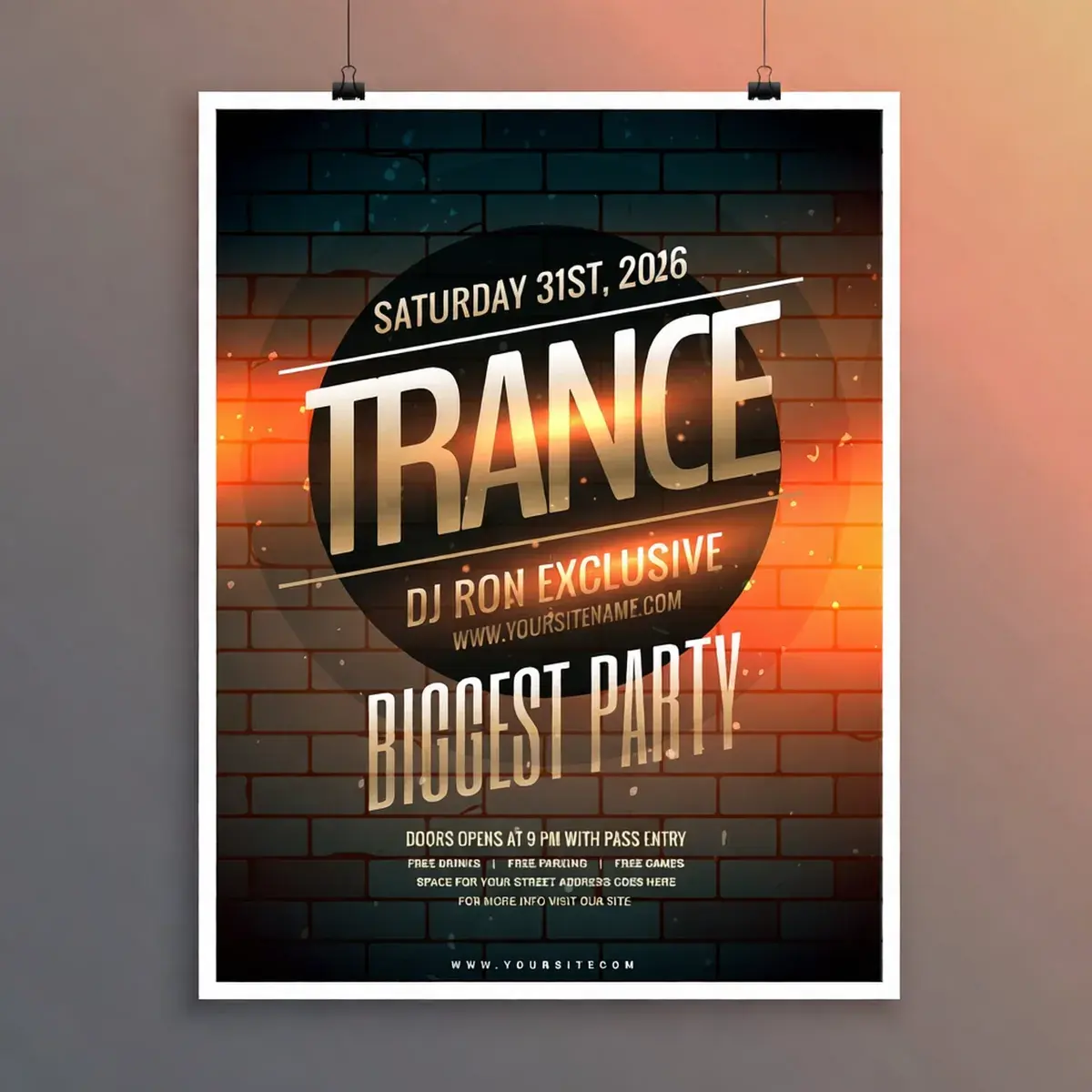 After
After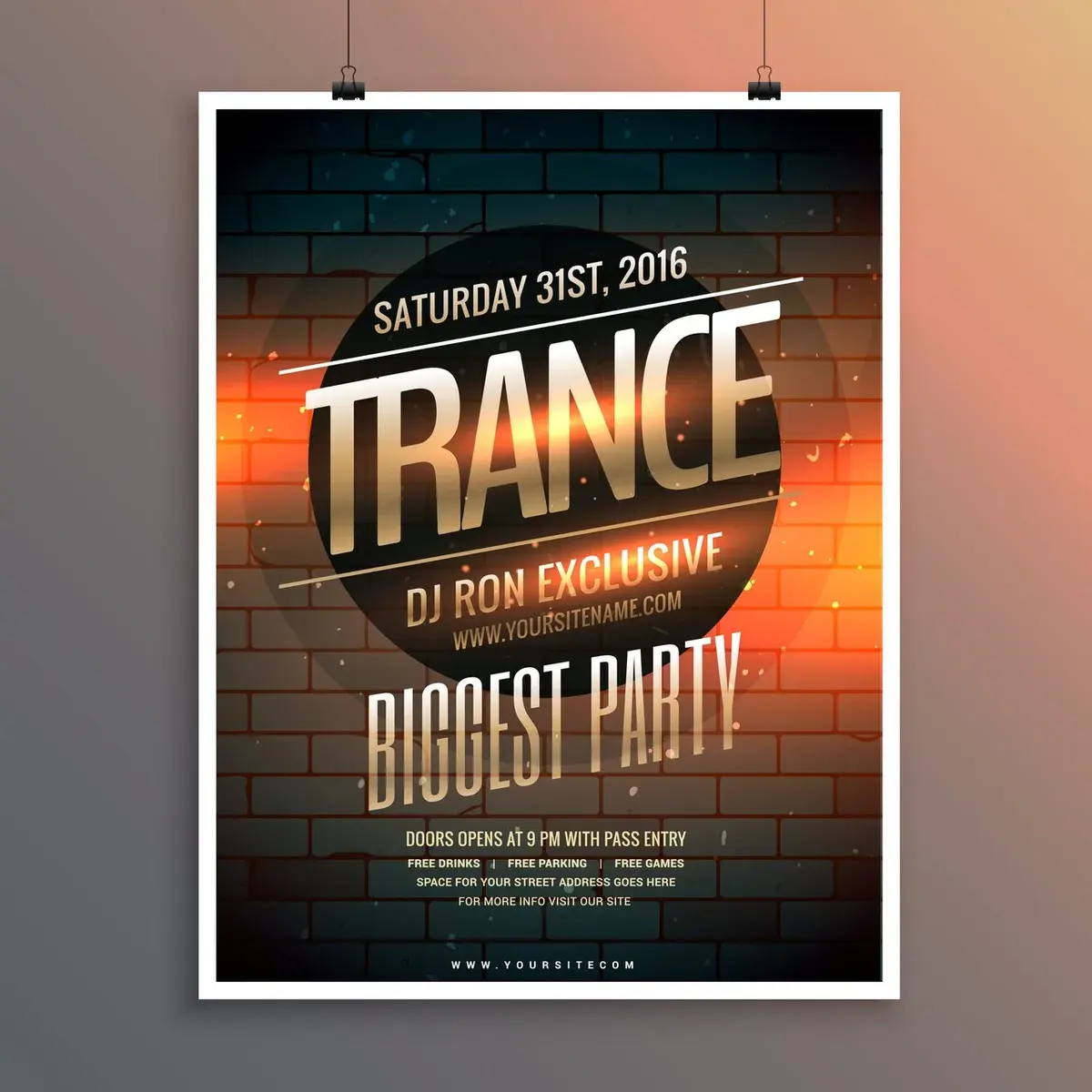 Before
Was:SATURDAY 31ST, 2016now reads:SATURDAY 31ST, 2026
Change a date in your image
First edit freePlease do not upload ID cards, passports, bank statements, tickets, receipts or any official document. This is for changing dates on your own material — posters, flyers, invitations, signs.
- First edit free
- JPG, PNG and WebP
- Preview before download
Quick answer
This page helps people change a date in an image by providing a JPG, PNG or WebP, the visible date and a replacement date, then returning an edited image to preview and download. It is for owned creative material, not records or evidence.
Three real situations
Three dates worth changing
Each example shows the source date, replacement and edited output. Always verify the complete date and nearby text before use.
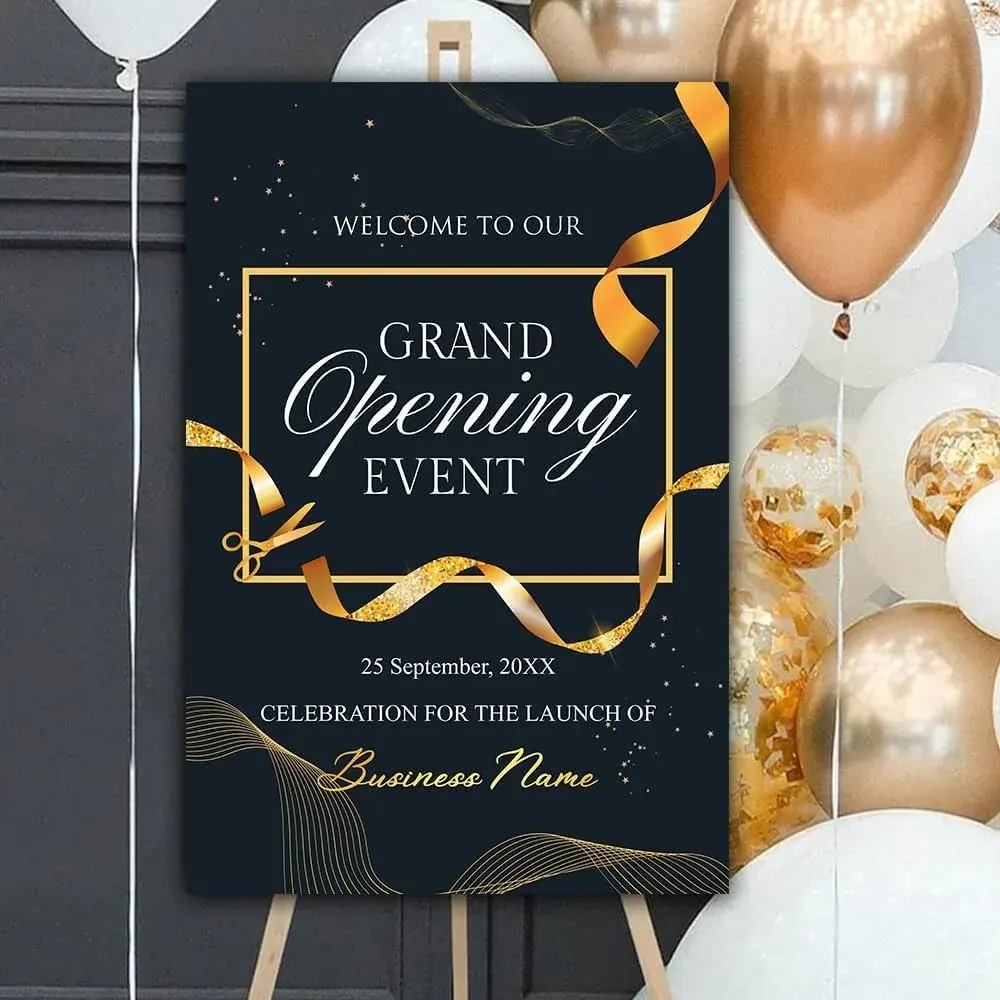 Before
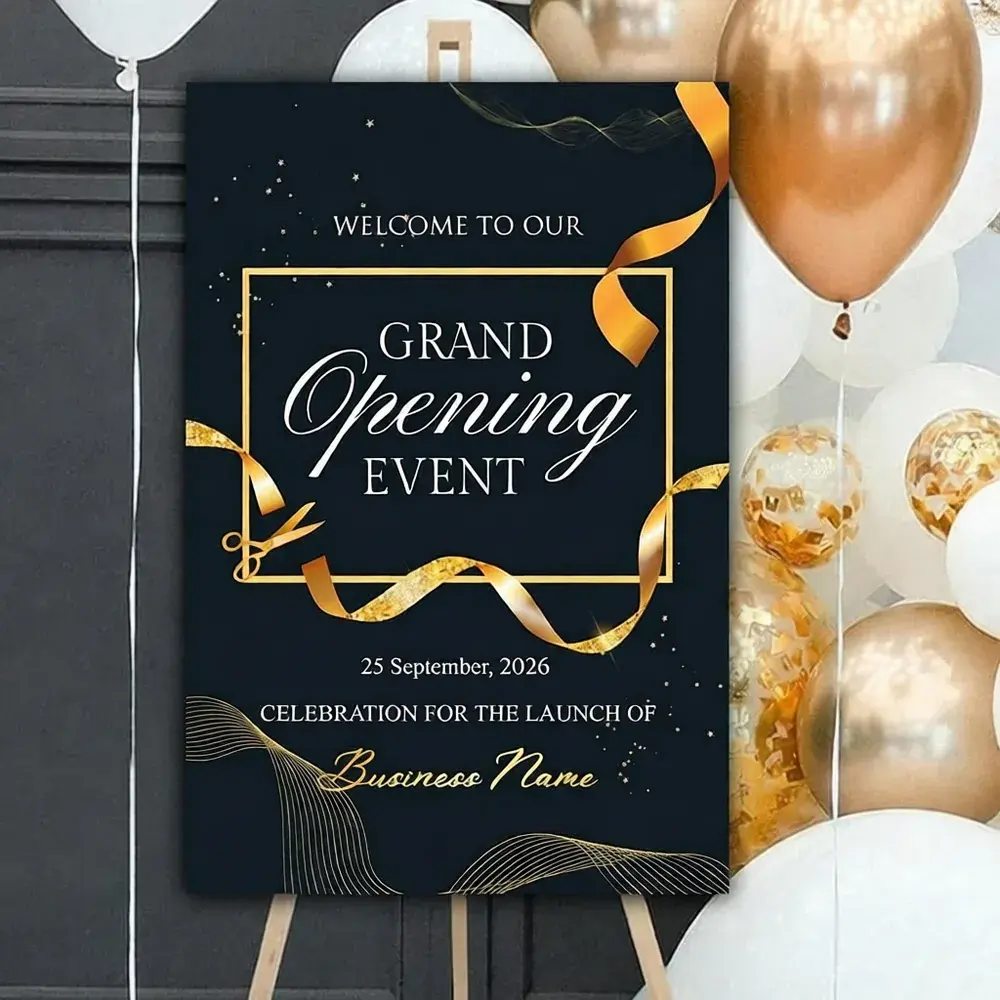 After
AfterAn opening day slips by a week
Change an opening date in an image
The board is printed and the balloons are booked, and then the date moves. Retyping it on the artwork means going back to whoever designed it.
25 September, 20XX25 September, 2026
 Before
 After
AfterA wedding date moves
Change a wedding date in an image
Guests already have the invitation. Replacing the date on the same card keeps the names, the flourishes and the colours that were chosen months ago.
19 June, 202227 June, 2026
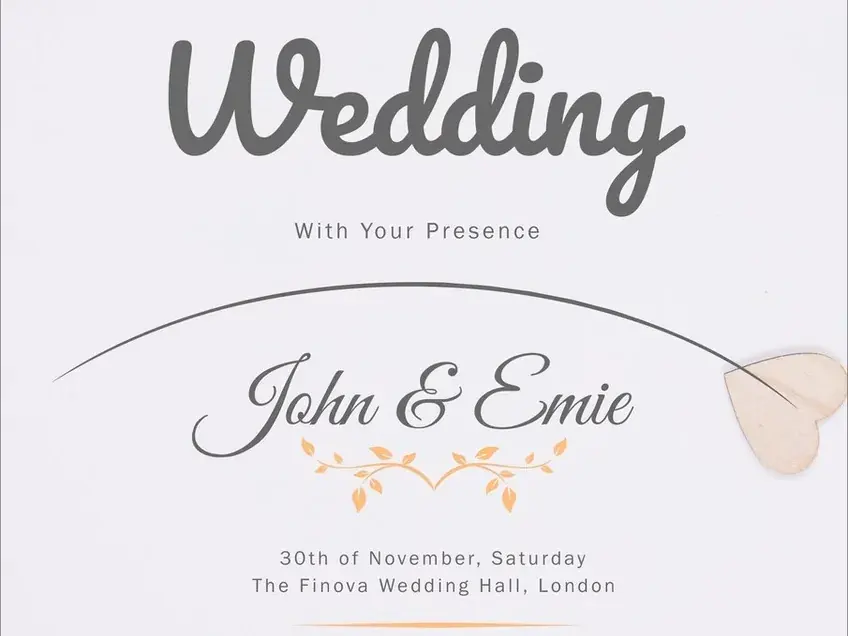 Before
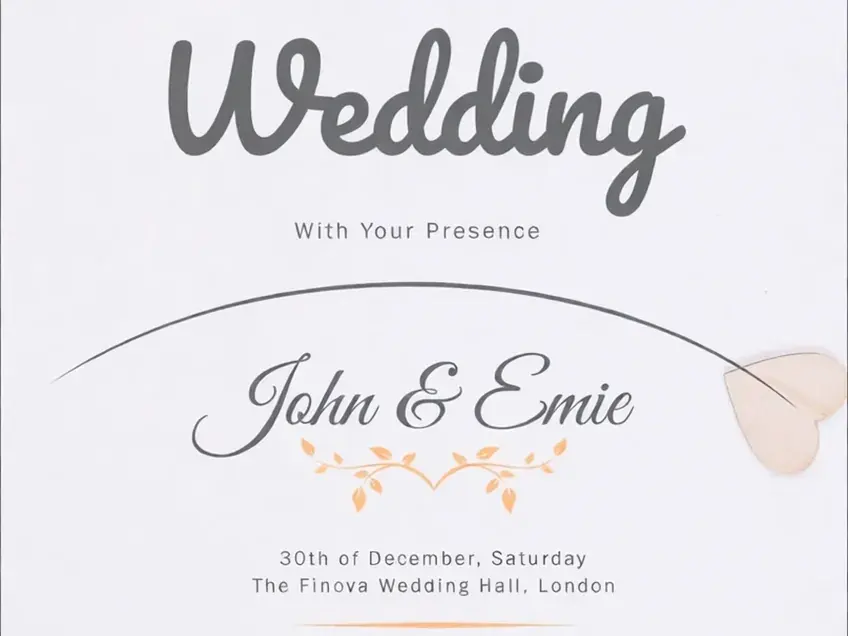 After
AfterOne month changes, not the design
Replace a month in an invitation
The month on an invitation moves. Review the floral border, wording and venue line around the replacement before sharing it.
30th of November, Saturday30th of December, Saturday
The basics
What does it mean to change a date in an image?
A finished picture is flat. There is no layer holding the date, no text box to click, no font list to look through. The date is made of pixels like everything else in the frame — which is why changing it normally means rebuilding the design, or going back to the person who made it.
Enter the date the image currently shows and the date it should show. The editor locates that string, reconstructs the covered area and draws the replacement using the visible style as a reference.
The difference shows up most with dates, because a wrong date fails quietly. A wrong year still looks like a year. Which is why every result is worth one close look at the digits before you publish it — the checklist further down this page is written for exactly that.
This is not a calendar or a design canvas. It replaces an existing date in a finished image; it does not calculate weekdays, update related dates or build a new poster.
Date formats
Not every date format is equally easy
How a date is written on the artwork decides how clean the result looks. Three common cases, roughly in order of how well they come out.
2026-06-18Numbers only
Digits with a separator. The repeated character shape makes this easier to review than a handwritten date, but compare the replacement with the surrounding line.
18 June 2026Month spelled out
The month is a word, the rest is digits. Usually clean — but the new month should be roughly as long as the old one. January into May leaves a gap; May into January will crowd the line.
30th of NovemberWritten out in words
Ordinal numbers, a preposition and a spelled-out month. The most fragile case: there is more to go wrong, and lettering that was drawn by hand is the hardest of all to repaint convincingly.
What to type
- Copy the date as it appears on the picture — same order, same separators. If it reads 18/06/2026, type 18/06/2026.
- Type the new date the same way. Keep it close to the original length where you can.
- If the artwork prints a weekday beside the date, check it in the result. The editor replaces the text you give it — it does not work out which day of the week your new date falls on.
None of this is a hard limit. These are the cases we have measured, in the order they tend to come out cleanest.
Three steps
How to change a date in an image
Upload the finished image, identify the complete date string and review the edited result.
Upload the picture you have
Upload the poster, flyer, invitation or schedule as a JPG, PNG or WebP.
Copy the date, then change it
Enter the complete visible date, including month names, separators and weekday text, then enter the replacement in the same format.
Check the full date, then download
Compare the result at full size. Verify digits, separators, month, weekday and nearby text before downloading or trying again.
The editor does not calculate weekdays or update other dates automatically. It replaces only the string you provide.
Before you publish
Five things to check on a changed date
Put the result next to the original and read the new date one digit at a time.
Read the new date digit by digit
This is the one people miss. A model that understands dates will happily turn 2022 into 2025, because both are plausible years. Every single digit has to match what you typed.
If a weekday is printed, check it still fits
The editor targets the text you provide. Move the date without moving the weekday and you can end up with a Saturday that is really a Tuesday.
Check the order has not flipped
Day-first and month-first look alike at a glance. 03/04/2026 is the third of April in one convention and the fourth of March in another — make sure the result kept the one your artwork was using.
Compare the lettering itself
Put the new digits next to nearby lettering and compare weight, height and spacing. Digits give it away: a 6 drawn with a different curve stands out at once.
Look at what sits either side of the date
The line above and the line below should remain visually consistent. A faint smudge where the old date was, or a line that no longer runs straight behind the new one, means it is worth generating again.
The first two catch a wrong result. The last three catch a result that is right but looks off.
Where to stop
Three dates this should not be used for
This is the part most tools in this category leave out. Here it matters more than anywhere else.
Anything used as proof
Tickets, receipts, invoices, bank statements, contracts, certificates, identity documents. Changing a date on a document other people rely on to be accurate is fraud, and this tool is not for it.
Dates you are required to keep accurate
Best-before and expiry dates on food, medicine labels, safety inspections, calibration records. These are regulated for a reason, and a picture is not the place to edit them.
A calendar grid
On a printed calendar the numbers line up with the weekday columns they fall in. Change one number and that arrangement breaks, so the month has to be redone properly instead.
Questions
Changing a date in an image — common questions
Supported inputs, date-specific risks and the checks required before download.
Can I change a date in an image for free?
Yes. The first edit is free and does not require a card. Upload an image, enter the complete current date and the replacement, then review the result before downloading.
Which date formats does it handle?
Use the complete format shown in the image: 2026-06-18, 18/06/2026, June 18 2026 or 18th of June. Keep the same order and separators in the replacement.
What if it cannot find the date?
Copy the date exactly, including punctuation and month spelling. Small or low-contrast dates are harder to locate, so make the source string as specific as possible and inspect the selected result.
Will it update the weekday too?
No. The editor replaces only the string you provide. Include the weekday in the source and replacement text, or verify and change it separately.
How should a generated date be checked?
Read every digit, separator, month and weekday, then compare nearby lines and background details. Revise the input or run another edit if any part is wrong.
What happens if the edit fails?
A technical failure does not consume a paid credit. A completed image with an incorrect digit or artifact should be retried or submitted for review.
Can I use the edited image commercially?
Yes, for creative material you own or are authorized to edit. Do not change dates on identity documents, receipts, tickets, contracts, certificates, food labels or medical labels.
What should I not upload?
Anything used as proof, or carrying a date you are legally required to keep accurate: ID cards, passports, tickets, receipts, invoices, bank statements, contracts, certificates, and food or medicine date labels. Editing those is fraud and is outside what this tool is for.
Change the date, then verify every detail
Upload the image, enter the complete current date and its replacement, then compare the edited result before downloading.