
Skip to content
Edit Text
  • Change a date in an imageMove a schedule, flyer or timestamp forwardEdit numbers and pricesPrices, quantities, times and phone numbersEdit text in a screenshotReplace labels, messages and UI copy in a finished screen
  • Remove text from image
  • Pricing
Checking…
  • Dates
  • Numbers
  • Screenshots
  • Remove text
  • Pricing
  1. Home
  2. /
  3. Edit text in a screenshot

Edit Text in a Screenshot Without Rebuilding the Design

Replace a button label, message, date, or interface phrase inside a finished screenshot. Upload the image, enter the current text and the replacement, then review the result before downloading.

Upload screenshot

Replace screenshot text

Enter the text that appears in the screenshot, then the wording you want instead.

Upload · replace · review
1Upload screenshot

Upload screenshot

JPG, PNG, or WebP·Or drag and drop a screenshot here

Type the words exactly as they appear in the screenshot.

Enter the words you want to appear instead.

4Generate

Start by choosing a screenshot.

Only edit screenshots you own or are authorized to change. Do not alter official records, proof of payment, or content intended to mislead someone.

Screenshot replacement preview

Before and after

Compare a changed interface label while the surrounding layout stays in place.

Browser screenshot after replacing the interface labelAfter
Browser screenshot before replacing the interface labelBefore

Example: replace one browser-field label without recreating the surrounding interface.

  • Works with JPG, PNG, and WebP screenshots
  • Clickable text suggestions may appear after upload
  • Review every character before publishing

DIRECT ANSWER

This screenshot text editor replaces words already baked into a JPG, PNG, or WebP screenshot. Upload the screenshot, enter the current phrase and the replacement, then review the generated image. It is built for short UI copy, labels, messages, dates, and notifications—not for rebuilding an entire interface.

SCREENSHOT CASES

Choose the smallest useful edit

A screenshot is a flattened image, so the tool reconstructs pixels around the changed words. These cases show what to check before you download.

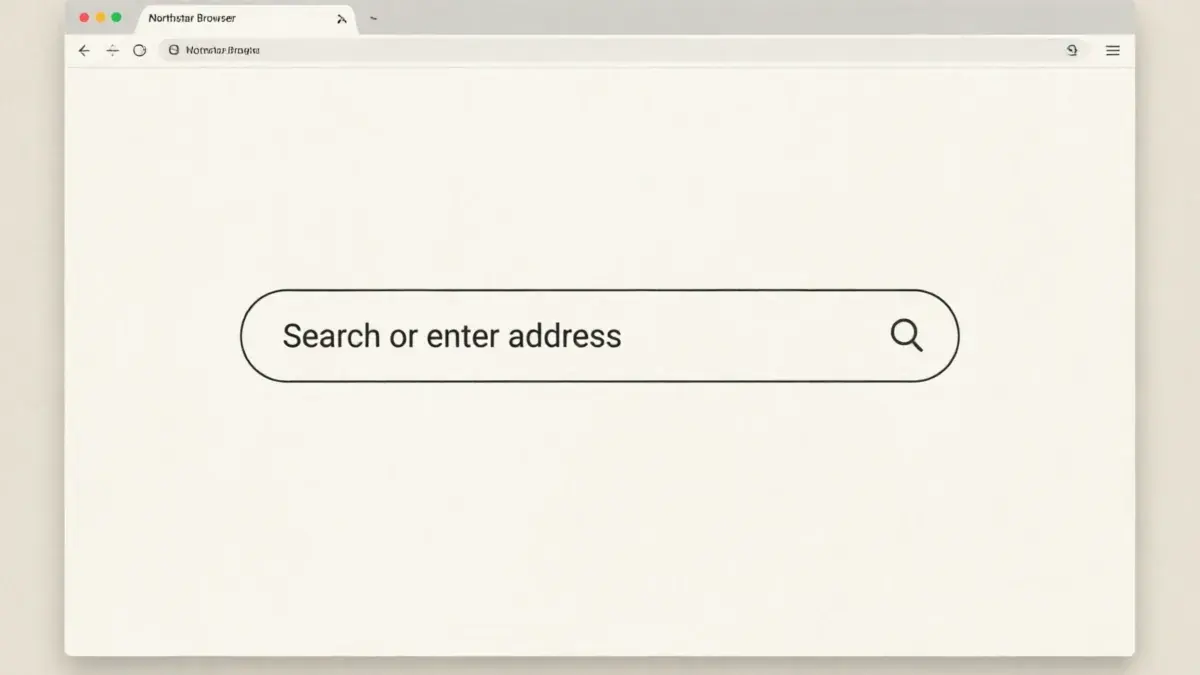
Browser screenshot before replacing the search-field textBefore
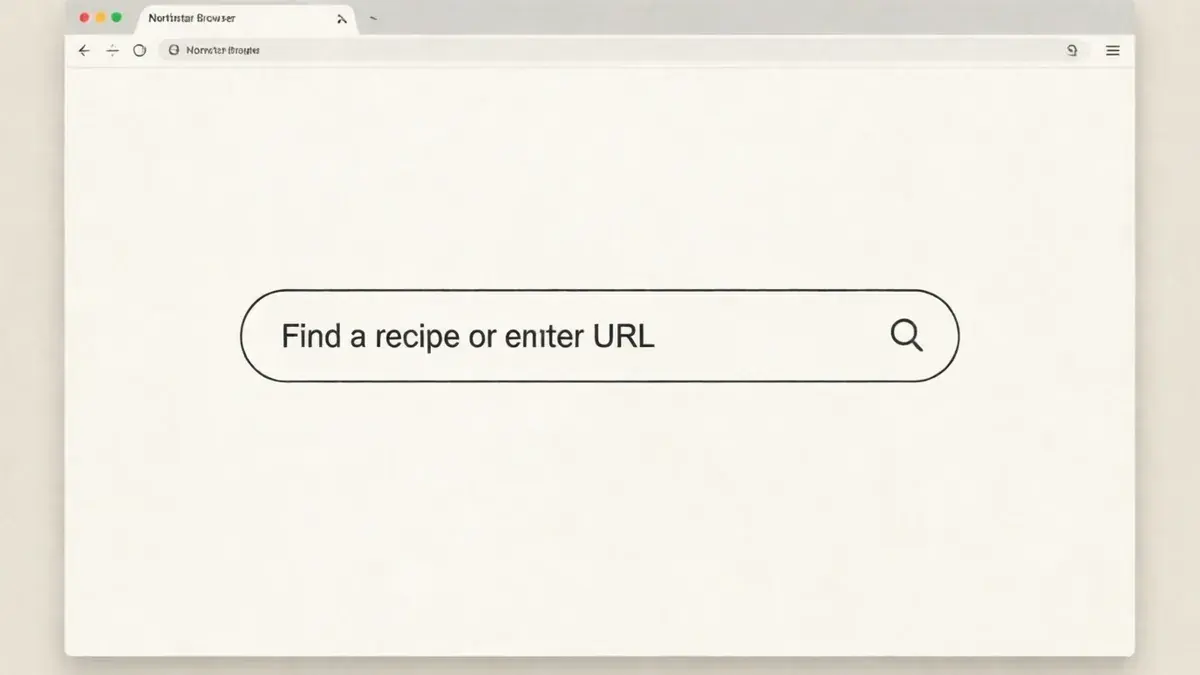
Browser screenshot after replacing the search-field textAfter

Real browser-field result

Short button labels

A clear phrase such as “Subscribe Now” is easier to replace than a full paragraph because there is less surrounding detail to rebuild.

Current text: Search or enter address→New text: Find a recipe or enter URL

02

Chat messages and dates

Keep the original capitalization, punctuation, and spacing in Current text, then compare a message or date at full size.

03

App notifications

Short notification copy is a good fit when the surrounding card is simple and the replacement stays close in length.

04

Text over busy UI

Small type, gradients, shadows, and repeated interface details can need another try. Manual entry remains available if detection misses a phrase.

FIT AND LIMITS

Know what the screenshot workflow can do

A clear boundary helps you choose the right tool before you spend time on a result that needs a different workflow.

  1. 01

    Works well for

    Short button labels, chat messages, browser fields, app notifications, dates, and other readable text already inside a screenshot.

  2. 02

    May need another try

    Tiny text, curved or decorative fonts, text over gradients, compressed screenshots, and long replacements that change the original layout.

  3. 03

    Not a layer editor

    It does not reopen hidden UI layers, rebuild an entire product screen, add freely positioned text boxes, or reproduce a source design file.

QUESTIONS

Edit text in a screenshot FAQ

The workflow, detection behavior, supported files, and the limits worth knowing before you download.

Can I edit text already inside a screenshot?

Yes. Upload the screenshot, type the current phrase exactly as it appears, enter the replacement, and review the generated screenshot.

Why can’t I click the original button or text layer?

A screenshot is usually a flattened image. The buttons, labels, and text fields became pixels when the screenshot was captured, so there are no editable layers to reopen.

Can the editor detect text in my screenshot?

The preview may show clickable text regions after upload. Detection can miss or misread words, so confirm the suggested phrase or type it manually.

Which screenshot formats are supported?

You can upload JPG, PNG, or WebP images. Use the clearest version available and avoid repeated compression when possible.

Will the new text use the exact original font?

Not always. The original font file is not stored in a flattened screenshot, so letter shapes, spacing, shadows, and nearby pixels are reconstructed. Review the result at full size.

Can I rebuild an entire app or website screen?

No. This page is for replacing a few existing words while keeping the surrounding screenshot. Use a design tool or source file when you need new layout, layers, or annotations.

KEEP GOING

Related image text workflows

Edit text in an imageUse the general editor for posters, product photos, menus, and other finished images.
How to edit text in an imageFollow the step-by-step workflow, including what to check before downloading.
Remove text from an imageErase lettering completely when you need a clean background rather than replacement words.

Ready to edit the screenshot?

Upload the image, enter the current phrase and the replacement, then review the updated screenshot before you download it.

Upload screenshotReview the screenshot cases
Edit Text

Replace words already inside a finished image, compare the result with the original and download the edited file.

Contact ussupport@rewordimage.com

Tools

  • Edit text in image
  • Edit text in a screenshot
  • Change a date in an image
  • Edit numbers and prices
  • Remove text from image

Site

  • Pricing
  • Blog
Reword Image
Launched on FazierFeatured on Twelve ToolsListed on Dang.ai

© 2026. All rights reserved.

Acceptable usePrivacy policyTerms of serviceRefund policyAbout