

How to Edit Text in an Image Without Rebuilding the Design
When words are already part of a JPG, PNG, WebP, or screenshot, you do not need to recreate the whole layout. Use the focused workflow below, then check the changed area before publishing.
START WITH THE WORKBENCH
Upload the image, type the original words exactly as shown, enter the replacement, and generate a new version to review. The source file stays untouched.
Screenshot replacement preview
Before and afterCompare a changed interface label while the surrounding layout stays in place.
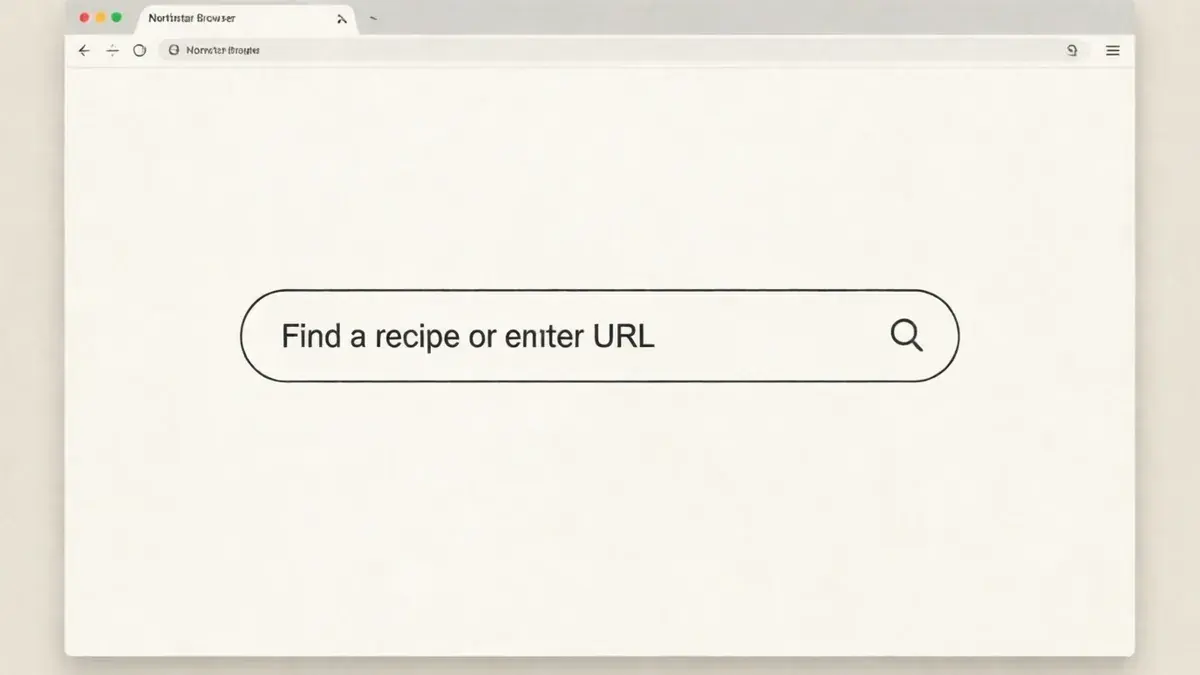 After
After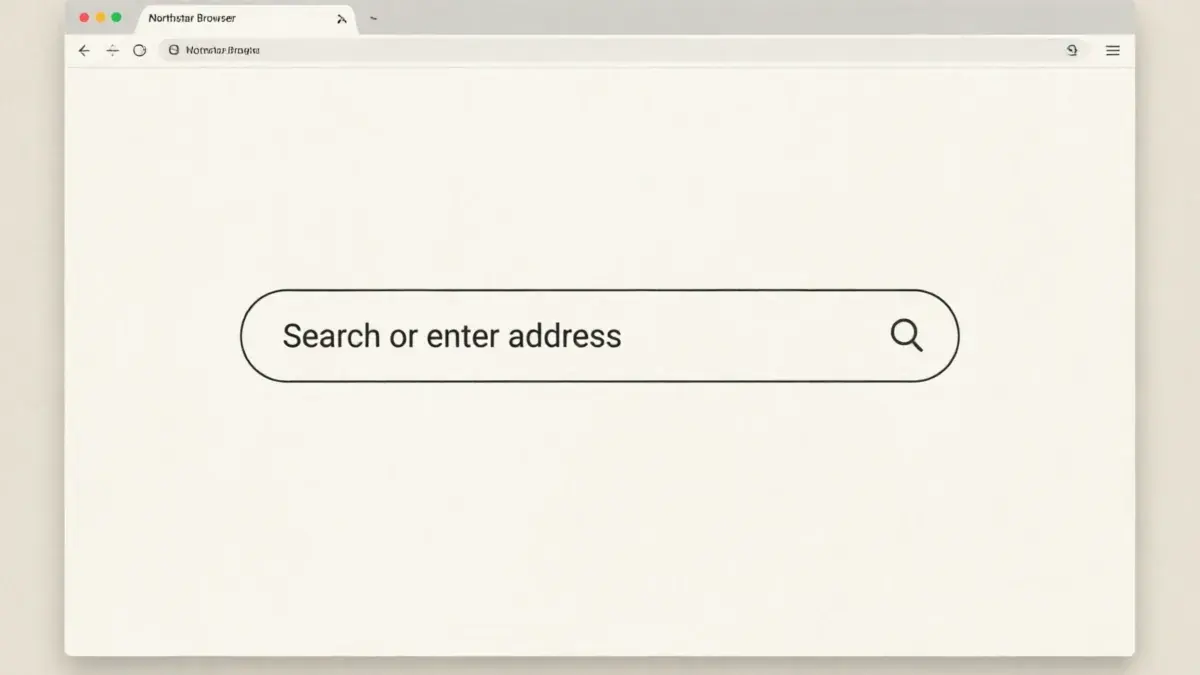 Before
Example: replace one browser-field label without recreating the surrounding interface.
Replace screenshot text
Enter the text that appears in the screenshot, then the wording you want instead.
Upload screenshot
JPG, PNG, or WebPOr drag and drop a screenshot here
Only edit screenshots you own or are authorized to change. Do not alter official records, proof of payment, or content intended to mislead someone.
DIRECT ANSWER
To edit text in an image, upload the JPG, PNG, WebP, or screenshot, enter the text currently shown, enter the replacement text, and generate an updated image. Check the changed letters, spacing, background, and nearby details before downloading.
THE WORKFLOW
Five steps from finished image to finished result
The important part is not only generating a new image. It is giving the editor enough context and then verifying the result.
- 01
Upload the clearest image
Use the original JPG, PNG, WebP, or screenshot rather than a copy that has been resized or compressed several times.
- 02
Enter the current text
Type the words exactly as they appear, including capitalization, numbers, punctuation, and spaces. A highlighted phrase can be clicked when detection finds one.
- 03
Enter the replacement
Keep the new phrase close to the original length when the surrounding layout is tight. Long replacements may change spacing or require another approach.
- 04
Generate and inspect
Wait for the result, then compare the changed area with the source. Look at letter shapes, edges, background texture, alignment, and nearby objects.
- 05
Download only after review
If a character or background detail is wrong, correct the input and try again. Use the result only for images and text you own or are authorized to edit.
BEFORE YOU START
When a different tool is better
Editing pixels is not the same as editing a source design file. Choose the workflow that matches the job.
Use this for
Replacing a few short words already inside a photo, poster, menu, product image, or screenshot.
Expect a review pass
Small text, busy textures, unusual fonts, curved lettering, and replacements much longer than the original may need another try.
Use a design file for
New layers, full layout changes, free typography controls, exact font editing, or rebuilding an entire poster or interface.
QUESTIONS
How to edit text in an image FAQ
Answers to the practical questions that usually appear before the first upload.
Can I edit text in a JPG?
Yes. Upload the JPG, enter the text currently shown and the replacement, then review the generated image. The JPG does not contain a separate text layer, so the changed area is reconstructed.
Does this create editable Photoshop layers?
No. It produces an updated image file. Use Photoshop, Canva, or the original design file when you need layers, movable text, or full layout control.
What should I check before downloading?
Check every character, capitalization, spacing, alignment, background texture, shadows, and nearby objects. Small or stylized text deserves an extra close review.
Can I download the result after editing?
Yes. The generated result appears in the workbench and can be downloaded after processing finishes. If the result is not usable, try again before publishing it.
NEXT STEP
Choose the right task page
Try the workflow on your image
The first edit is free. Upload a clear image, replace a short phrase, and inspect the result before you decide what to do next.