
Skip to content
Edit Text
  • Change a date in an imageMove a schedule, flyer or timestamp forwardEdit numbers and pricesPrices, quantities, times and phone numbersEdit text in a screenshotReplace labels, messages and UI copy in a finished screen
  • Remove text from image
  • Pricing
Checking…
  • Dates
  • Numbers
  • Screenshots
  • Remove text
  • Pricing
  1. Home
  2. /
  3. Edit text in image with same font

Edit Text in an Image With the Same Font, Not a New Look

Swap the words in a finished image and keep the lettering close to how it already looked. Type the text that is there now, type what you want instead, then compare the result before you download it.

Upload image

Replace text and keep the font

Enter the text that appears in the image, then the wording you want instead.

Upload · replace · review
1Upload image

Upload image

JPG, PNG, or WebP·Or drag and drop an image here

Type the words exactly as they appear in the image.

Enter the words you want to appear instead.

4Generate

Start by choosing an image.

Only edit images you own or are authorized to change. Do not alter official records, proof of payment, or content intended to mislead someone.

Same-font replacement preview

Before and after

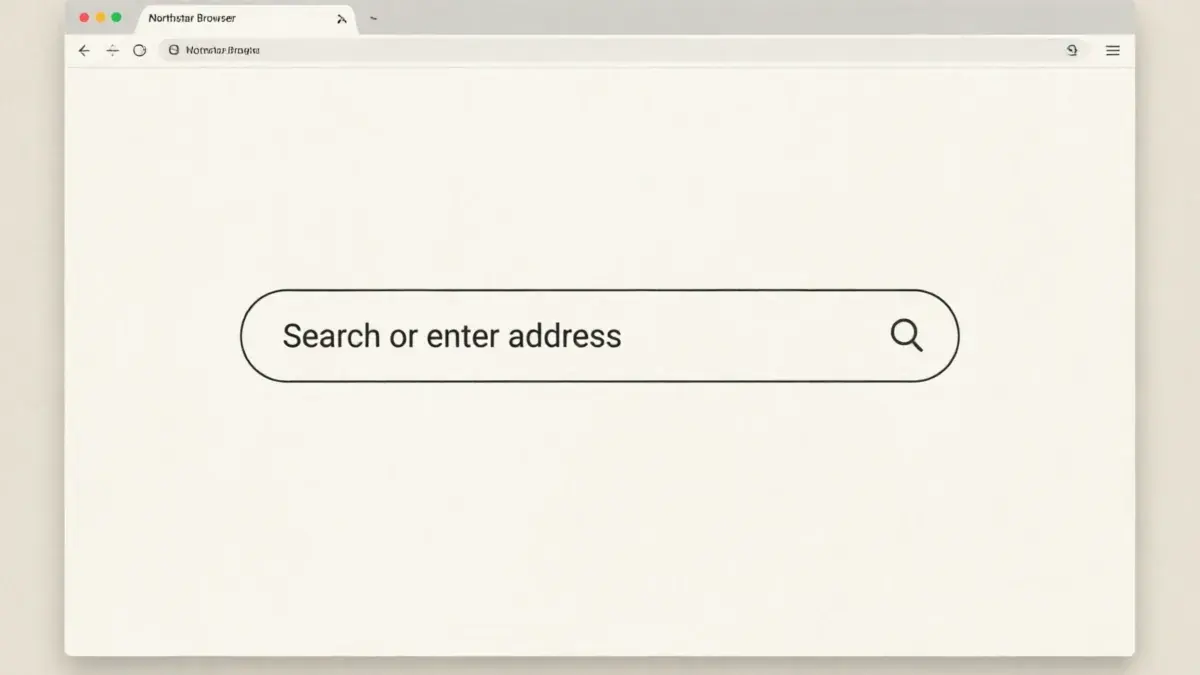
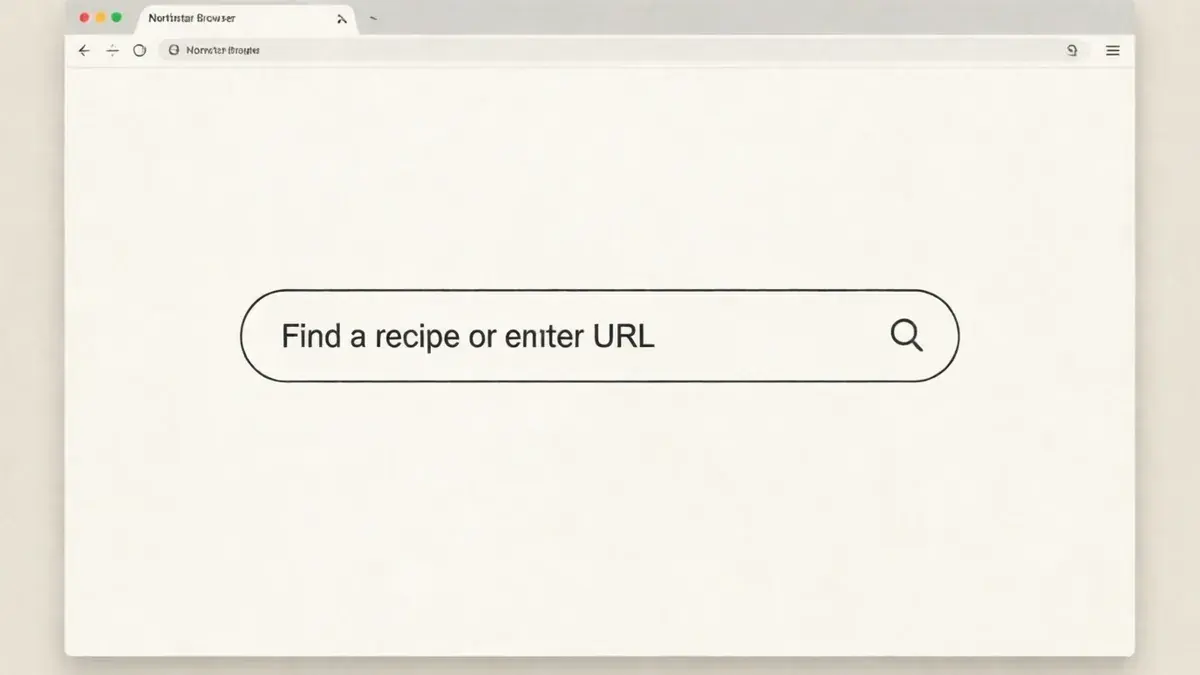
One interface label replaced while the surrounding layout and lettering stay put.

Interface screenshot after replacing the label text with matching letteringAfter
Interface screenshot before replacing the label textBefore

Example: one browser-field label replaced, with the interface layout left as it was.

  • Works with JPG, PNG, and WebP images
  • Typing the current text improves the match
  • Compare the result before you download

DIRECT ANSWER

This same-font image text editor replaces words already baked into a JPG, PNG, or WebP and rebuilds the lettering to follow the original's weight, spacing, colour, and alignment. Type the current text and the replacement, then review the result. A finished image does not carry the font file, so the goal is a close visual match rather than an identical typeface.

SAME-FONT CASES

What a same-font edit looks like in practice

The tool reads the lettering already in the picture and rebuilds the replacement word to follow it. These cases show the swaps that tend to stay closest, and the one detail worth checking each time.

Interface image before replacing the field textBefore
Interface image after replacing the field textAfter

Real interface-field result

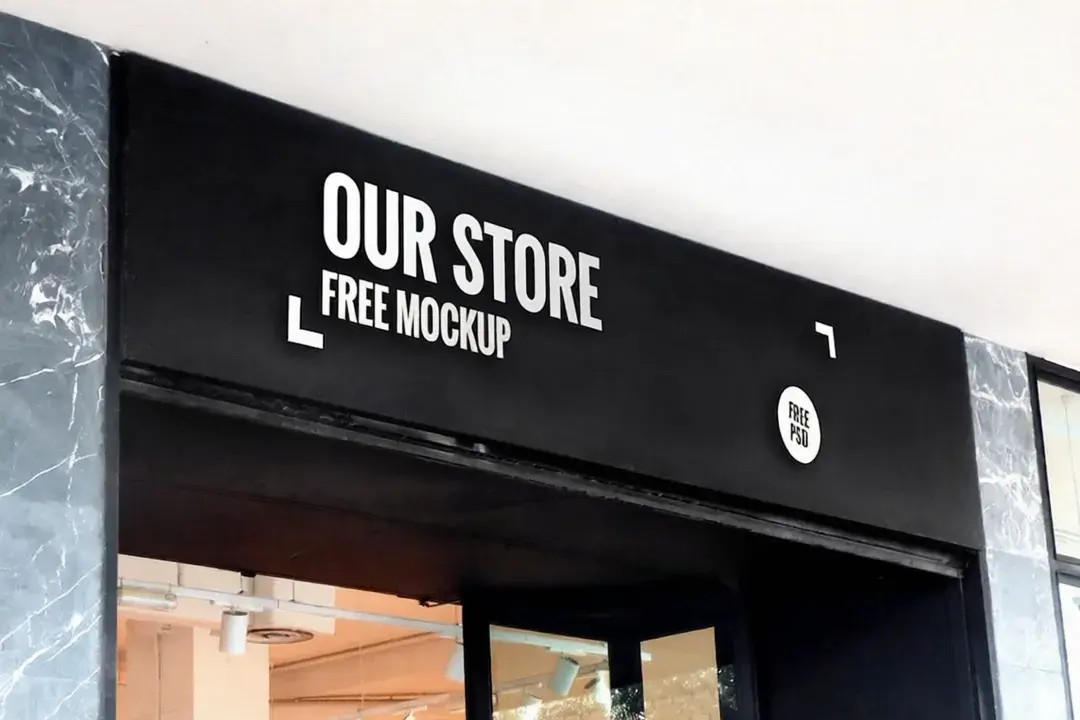
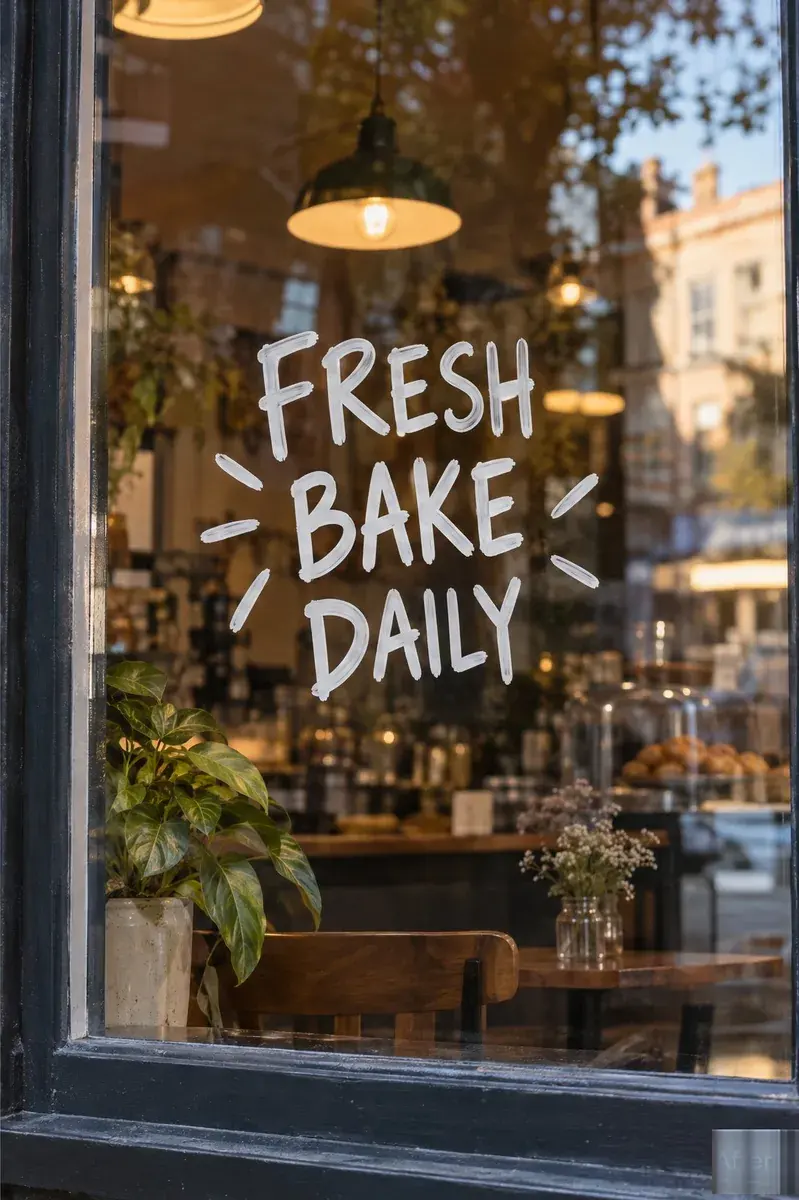
A headline on a poster or banner

Large lettering on a flat background gives the tool room to match weight and letter spacing. Keep the replacement roughly as long as the original and the layout stays believable.

Current text: Search or enter address→New text: Find a recipe or enter URL

02

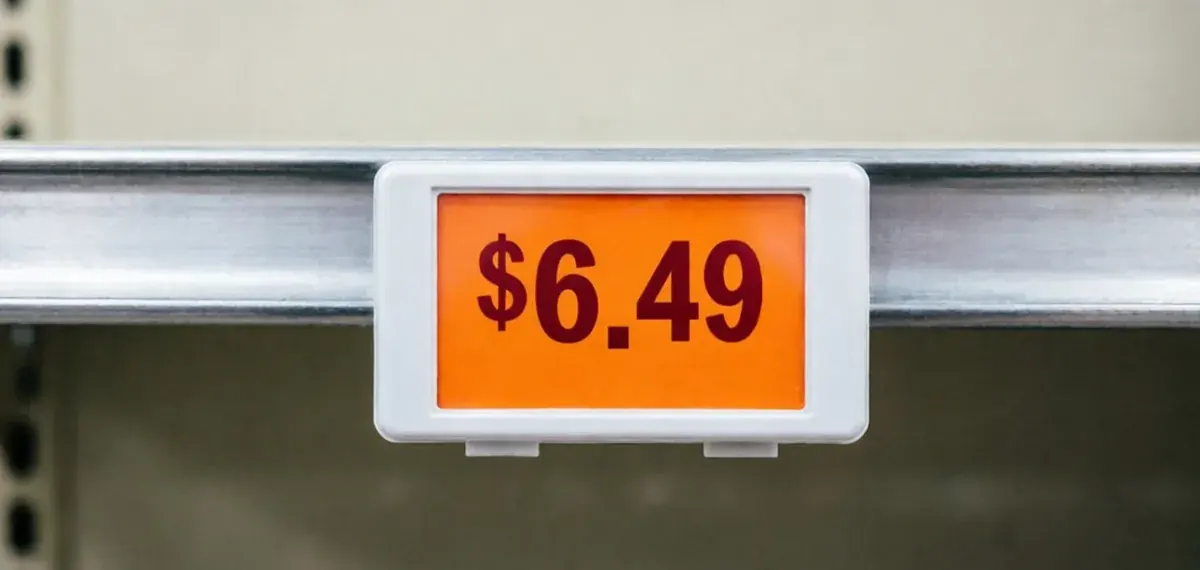
A price, date, or name on a sign

Short phrases are the safest swap. Type the current words exactly, including capitals and spacing, so the tool can locate the right region and match the surrounding lettering.

03

A label inside a product photo

Works best when the label sits on a fairly even surface. Glossy reflections, curved text, and dense texture around the letters are harder to match closely.

04

Text in a screenshot or UI capture

Interface copy is usually short and evenly lit, which makes it a good fit. If you want the interface layout explained rather than the lettering, use the screenshot page instead.

What gets matched, and what cannot be

Being clear about this is the point of this page. A flattened image stores shapes, not a font, so these are the attributes the tool can work from.

Letter weight and thickness
Read from the strokes already in the image, so a bold word stays bold rather than turning light.
Spacing and line height
Letter spacing and vertical rhythm are rebuilt from the surrounding words. A very different replacement length still stretches them.
Colour and outline
Text colour, shadows, and outlines are continued from the neighbouring lettering so the new word sits in the same visual layer.
Exact typeface identity
Not recoverable. The image does not contain the font file, so the result follows the visible style rather than loading the original typeface.

FIT AND LIMITS

Know what a same-font edit can do

Choosing the right task up front saves a wasted generation on an image the workflow was never going to match closely.

  1. 01

    Works well for

    Short or medium text on posters, banners, signs, menus, price tags, product labels, and interface screenshots, where the lettering sits on a fairly even surface.

  2. 02

    May need another try

    Curved or slanted lettering, decorative display faces, small type over busy backgrounds, text on glossy reflections, and very long replacements that change the original line length.

  3. 03

    Not a layer editor

    It does not reload an original font file, reopen a design document, add freely positioned text boxes, or return an editable text layer. It works on the finished image.

QUESTIONS

Edit text in image with same font FAQ

What the same-font workflow can match, what it cannot, and how to get the closest result on the first try.

How do I edit text in an image and keep the same font?

Upload the image, type the text that is there now exactly as it reads, type the replacement, and generate. The tool reads the existing lettering to match weight, spacing, colour, and alignment, then rebuilds the word in the same style. Review the result at full size before you use it.

What program do I need to edit text in an image?

None. There is nothing to install and no Photoshop required: the image goes straight to this page and the text is replaced in your browser. Type the current text, type the new one, and generate. It works on a phone too, with no account.

Do I need to know the font name or install the original font?

No. You do not need the typeface name, and you do not need the font file installed. A finished image contains letter shapes rather than font data, so the editor works from what is visible in the picture. If you have the font name anyway, keep it for your own records, but it is not required for the edit.

How close does the matched font look to the original?

Weight, spacing, colour, alignment, and nearby shadows are rebuilt from the visible lettering, so the new word usually reads as part of the same design. The exact typeface is not recoverable from a flattened image, so very distinctive or decorative lettering can still look different. Check the result at full size and regenerate if it misses.

Why does typing the current text help?

The current text tells the editor which region of the image to rebuild. Without it, the tool has to guess where the words are. Typing the existing phrase, including capitals and punctuation, narrows that down and usually produces a closer match.

Which fonts can it match?

Plain and common typefaces on an even background are the most straightforward. Curved, slanted, outlined, heavily shadowed, and decorative display lettering are harder, because the editor reconstructs the word rather than retyping it in a known font.

Will the background behind the old text stay intact?

The area behind the replaced words is rebuilt, so small textures can shift slightly. On flat backgrounds this is usually not noticeable; on busy or patterned backgrounds it can be visible. Check the area around the new text before you publish.

What about custom or brand fonts?

The style can be followed closely, but the original brand font file cannot be loaded. If you need exact brand typography, a design tool with the font installed remains the reliable route. This workflow is best when the goal is an edit that looks consistent rather than a certified brand export.

Can it follow curved or angled text?

Sometimes, but it is the least predictable case. Text on a curve or a strong perspective is reconstructed from very little surrounding detail, so letter shapes can drift. Generate, compare at full size, and try again if the baseline wobbles.

Does it cost anything to try?

The first edit on this site is free and needs no payment method, so you can check the match quality on your own image before deciding whether to continue.

Should I use this page or the general text editor?

Use this page when the font style of the existing words matters to your result and you want the editor to follow it closely. Use the general editor for any finished image where the lettering just needs replacing. If you want the lettering erased instead of replaced, use the remove-text page.

KEEP GOING

Related image text workflows

Edit text in an imageUse the general editor for posters, product photos, and menus where the lettering just needs replacing.
Edit text in a screenshotFocus on interface labels, messages, and dates inside a captured screen.
Edit numbers in an imageSwap prices, quantities, or figures where the digits need to be checked one by one.
Remove text from an imageErase lettering completely when you need a clean background instead of replacement words.

Ready to replace the text and keep the look?

Upload the image, enter the current phrase and the replacement, then review how the new lettering sits next to the original before you download.

Upload imageReview the same-font cases
Edit Text

Replace words already inside a finished image, compare the result with the original and download the edited file.

Contact ussupport@rewordimage.com

Tools

  • Edit text in image
  • Edit text in a screenshot
  • Edit text with the same font
  • Change a date in an image
  • Edit numbers and prices
  • Remove text from image

Site

  • Pricing
  • Blog
Reword Image
Launched on FazierFeatured on Twelve ToolsFeatured on Findly.toolsListed on ToolPilot.aiListed on Dang.aiMossAI ToolsSubmit AI Tools badgeFeatured on Wired BusinessFeatured on TinyShelf

© 2026. All rights reserved.

Acceptable usePrivacy policyTerms of serviceRefund policyAbout