

Edit Numbers in Image
Upload a JPG, PNG or WebP, enter the number shown and the replacement value, then preview and download the edited image. This workflow is for prices, quantities and times in your own materials; verify every digit, separator and unit.
Upload an image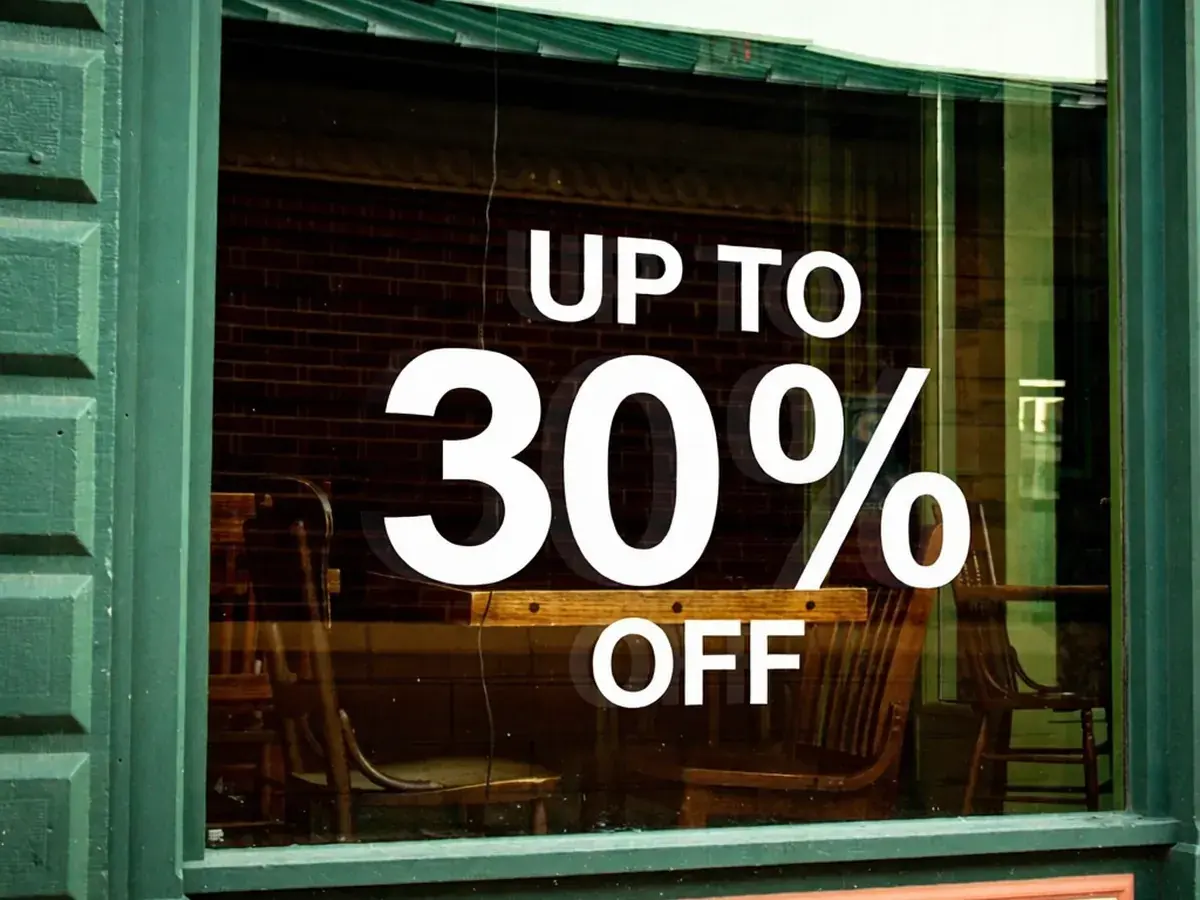 After
After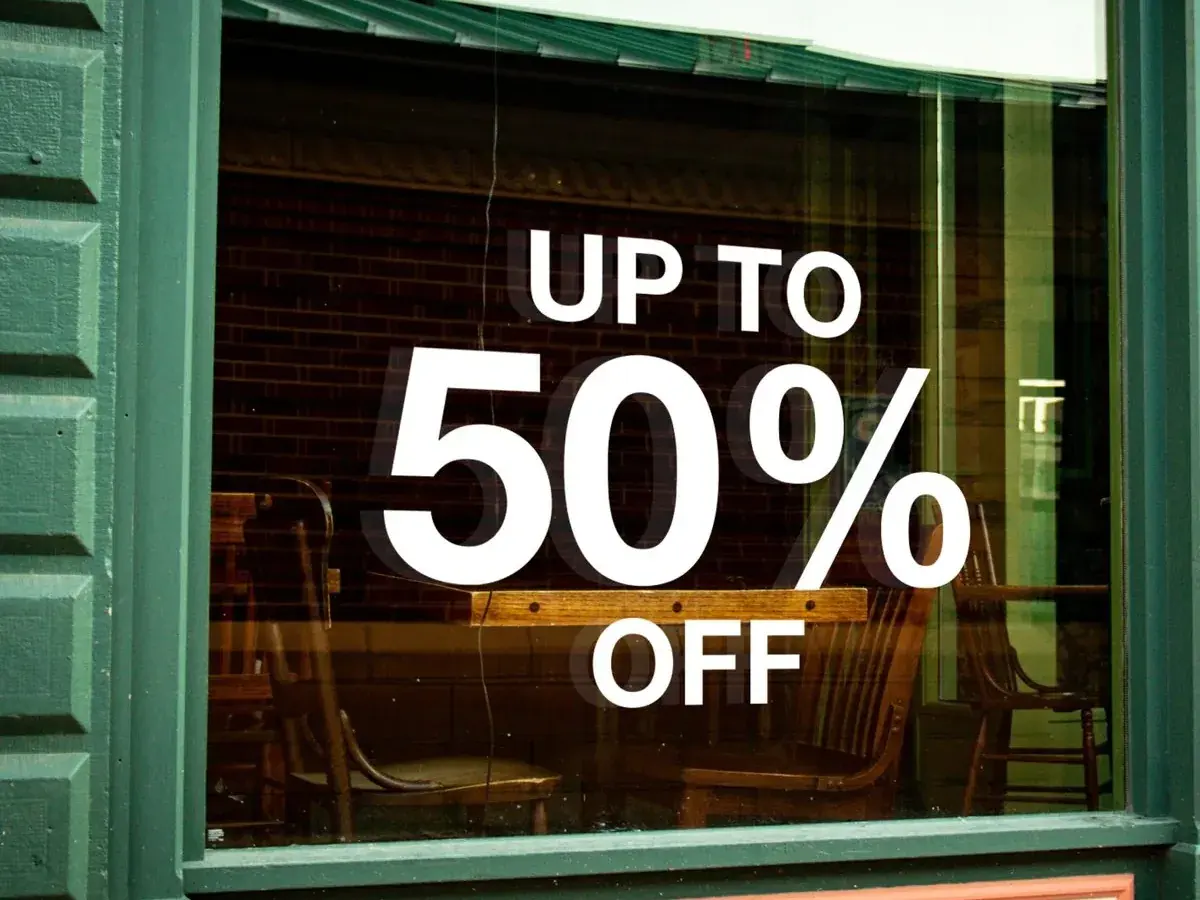 Before
Was:50%now reads:30%
Edit a number in your image
First edit freePlease do not upload receipts, invoices, bank statements, tickets, ID cards, meter readings or any other record other people rely on to be accurate. This is for changing numbers on your own material — shelf labels, price tags, menus, opening-hours signs.
- First edit free
- JPG, PNG and WebP
- Preview before download
Quick answer
This page helps people edit a number in an image by providing a JPG, PNG or WebP, the visible number and a replacement value, then returning an edited image to preview and download. It is for owned marketing material, not records or evidence.
Three real situations
Three numbers worth changing
Each example shows the input value, replacement and edited output. Always inspect other numbers and the surrounding design before use.
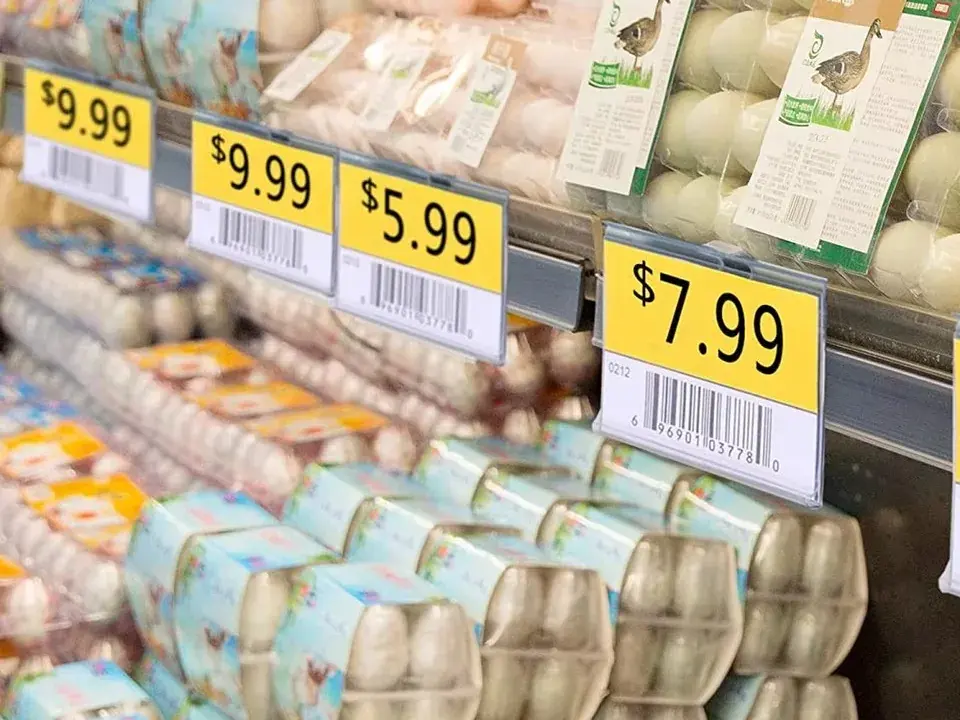 Before
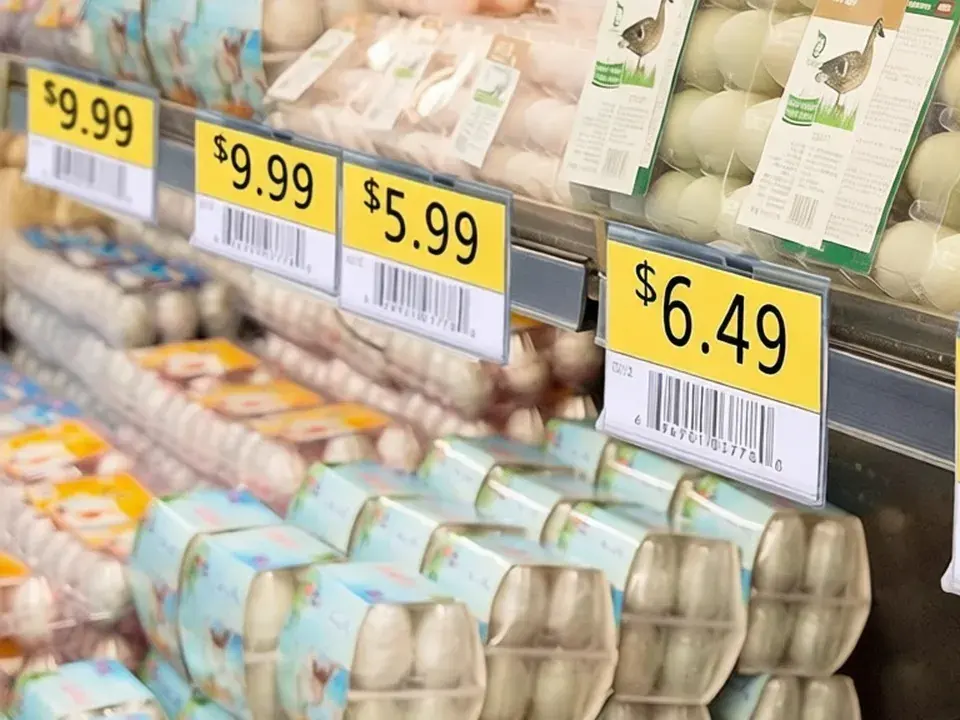 After
AfterThe shelf price drops, the label stays
Edit a price in an image
A supermarket shelf label carries three prices. One of them changes and the barcode, the product name and the neighbouring tags are all still correct — so the label gets edited, not reprinted.
$7.99$6.49
 Before
 After
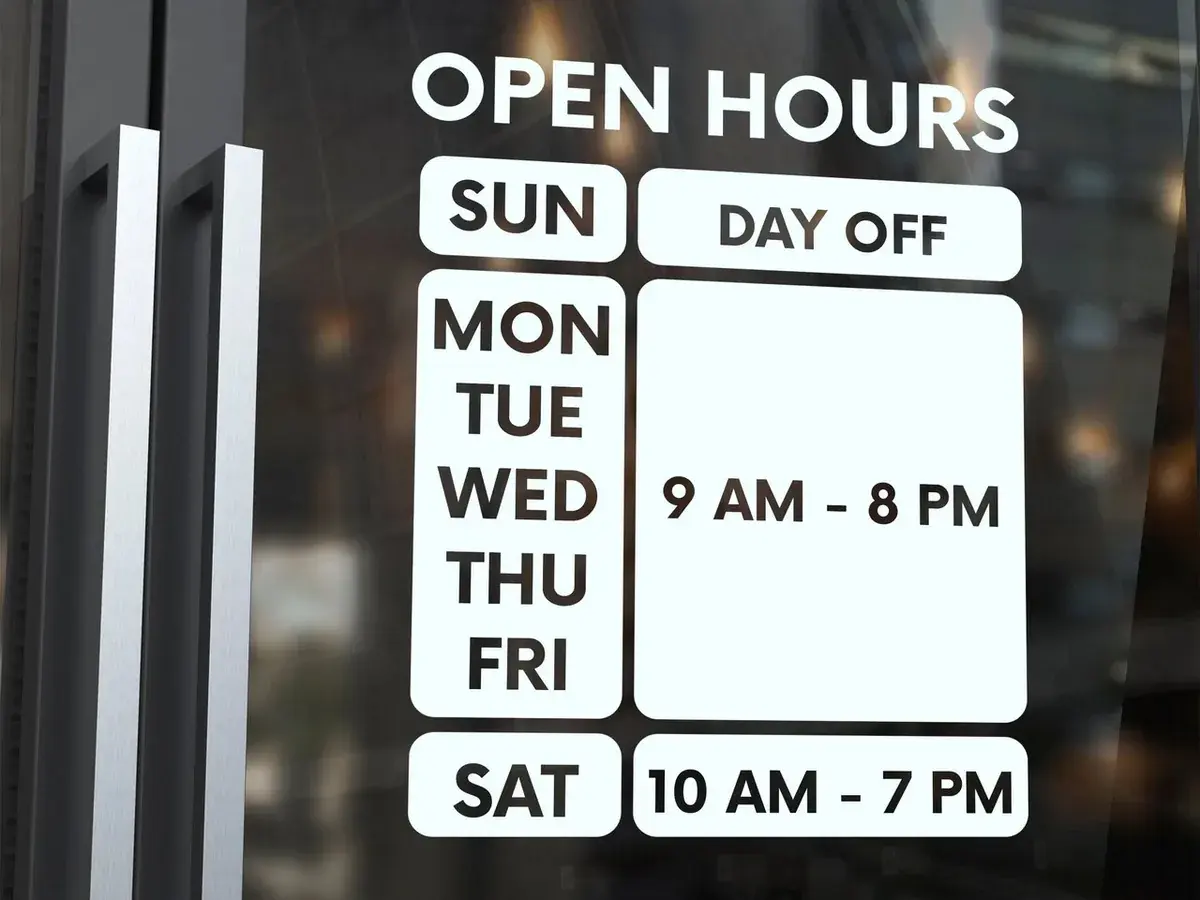
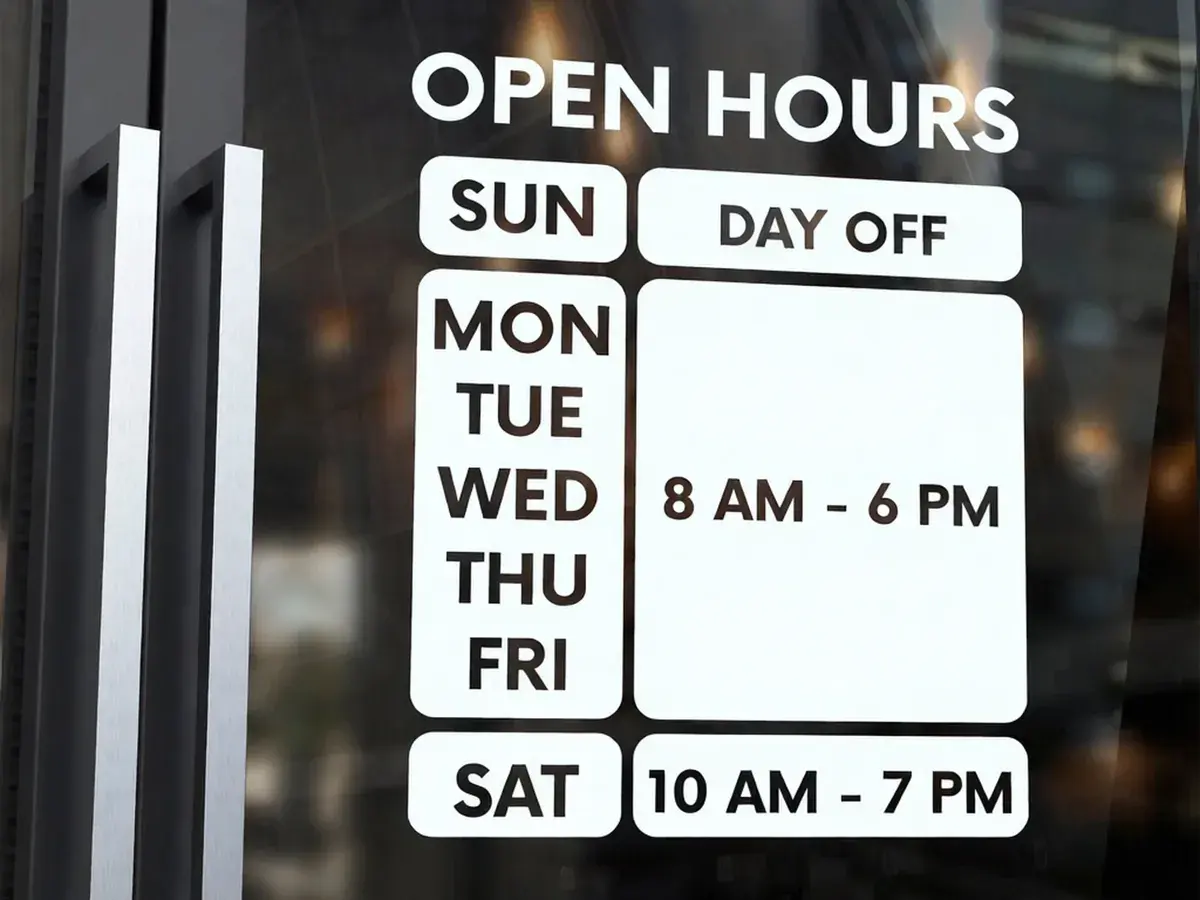
AfterOpening hours change for the season
Change opening hours in an image
The hours on the shop door are printed on the glass. Winter hours start earlier and end earlier, and the rest of the sign — the day, the lettering, the glass behind it — has not moved.
9 AM - 8 PM8 AM - 6 PM
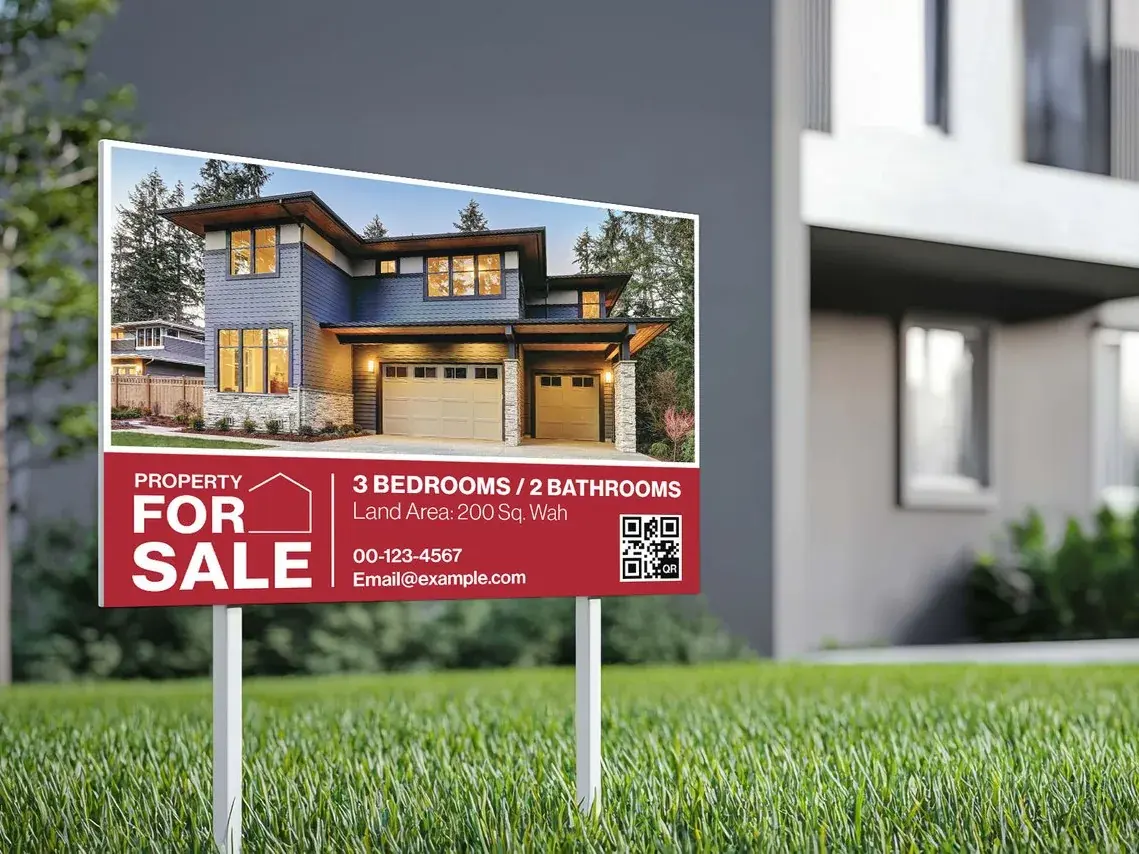 Before
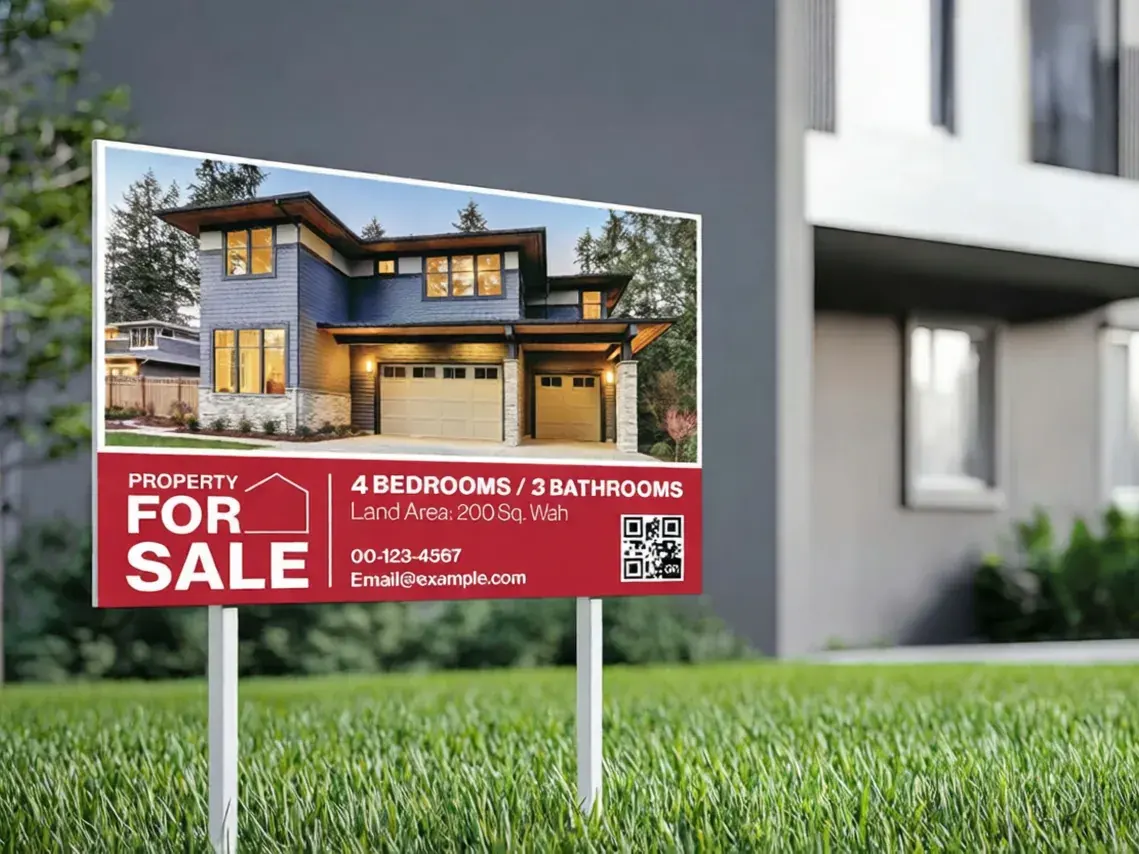 After
AfterA listing gains a room
Edit a room count in an image
The property sign says three bedrooms and two bathrooms. The renovation is finished, so the sign needs the new count before the weekend viewings — and the rest of the board is still accurate.
3 BEDROOMS / 2 BATHROOMS4 BEDROOMS / 3 BATHROOMS
The basics
What does it mean to edit a number in an image?
A finished picture is flat. The price on the shelf label is not a text layer, and the hours on the shop door are not a text box. They are made of pixels like everything else in the frame — which is why changing one normally means rebuilding the artwork, or going back to whoever made it.
Enter the number the image currently shows and the value it should show. The editor locates that string, reconstructs the covered area and draws the replacement using the visible style as a reference.
Numbers are a stricter job than words, because a wrong number fails quietly. $6.49 and $6.99 look equally plausible on a shelf tag. Models also tend to tidy digits they think are untidy — rounding 7.99 up to 8.00, or dropping a trailing zero. That is why the checklist further down this page reads the result one digit at a time.
This is not a spreadsheet or a design canvas. It replaces an existing number in a finished image; it does not calculate values, update related totals or build a new price list.
Number formats
Not every number format is equally easy
How a number is written on the artwork decides how clean the result looks. Four common cases, roughly in order of how well they come out.
$7.99Price
A currency symbol, digits and a decimal point. The risk is the model rounding 7.99 up to 8.00 or trimming the trailing zero, because both look tidier. Copy the symbol and decimal as shown, then check them in the result.
3 BEDROOMSQuantity with a unit
A figure followed by a word. The number is straightforward; the trap is the unit beside it. Change 3 to 4 and the word after it must not be touched, shortened or pluralised differently.
9 AM - 8 PMTime or hours
Two times, a separator and often an AM/PM marker. There is more here to rearrange than in any other format, so this is the one to check most closely — the separator and the AM/PM markers are the parts that move.
50%Percentage
A number and a sign that belong together. Percentages come out clean as long as the symbol stays attached and the digits are not rounded to the nearest ten. Watch for the sign drifting away from the number when the new figure is a different width.
What to type
- Copy the number exactly as the picture shows it — same symbol, same decimal point, same thousands separator. If it reads $7.99, type $7.99.
- Type the new number the same way. Leave the symbol and the punctuation where they were, even if you would normally write it differently.
- If a unit or a word sits next to the number — %, AM, BEDROOMS — type the whole thing as one string. The editor targets the string you provide, so check the surrounding text after processing.
None of this is a hard limit. These are the cases we have measured, in the order they tend to come out cleanest.
Three steps
How to edit numbers in an image
Upload the finished image, identify the full number string and review the edited result.
Upload the picture you have
Upload the shelf label, menu, price card or sign as a JPG, PNG or WebP.
Type the number, then change it
Enter the complete visible number, including currency signs, decimal separators, percentages or units, then enter the replacement in the same format.
Check every digit, then download
Compare the result at full size. Verify digits, separators, units and every other number before downloading or trying again.
The editor does not calculate prices, dates or totals. It replaces only the string you provide.
Before you publish
Five things to check on a changed number
Put the result next to the original and read the new number one digit at a time.
Read the new number digit by digit
This is the one people miss. A model that understands prices will happily turn 7.99 into 8.00, because a round figure looks like a better price. Every single digit has to match what you typed.
Check the decimal point and the trailing zeros
Trailing zeros and decimal points are the first things to disappear. 7.99 can come back as 7.9, and 1,250 can lose its comma and read as 1250 — which is a different number.
Check the symbol is still attached
A currency symbol or a percent sign that drifts away from its number, or gets dropped entirely, changes what the figure means. Make sure it is still there and still in the same place.
Look at the other numbers in the frame
A shelf label carries several prices and a menu carries many. Only the one you typed should have changed — check the rest against the original before you publish.
Compare the digits themselves
Put the new digits next to nearby lettering and compare weight, height and spacing. Digits give it away: a 6 drawn with a different curve stands out at once.
The first three catch a wrong number. The last two catch a number that is right but looks off.
Where to stop
Three numbers this should not be used for
This is the part most tools in this category leave out. Here it is not just etiquette — it is the law.
Anything used as proof
Receipts, invoices, bank statements, tickets, contracts, payslips. Changing a figure on a document other people rely on to be accurate is fraud, and this tool is not for it.
Identity and official documents
ID cards, passports, driving licences, number plates, exam results, medical reports. Editing a number on any of these is forgery, whatever the reason.
Meter and instrument readings
Electricity and water meters, fuel pumps, weighbridge displays, odometer readings. These are measurement records, and a picture is not the place to edit them.
Questions
Editing numbers in an image — common questions
Supported inputs, number-specific risks and the checks required before download.
Can I edit a number in an image for free?
Yes. The first edit is free and does not require a card. Upload an image, enter the complete current number and the replacement, then review the result before downloading.
Which number formats does it handle?
Use the complete string shown in the image: $7.99, 7,99 €, 50%, 9 AM - 8 PM or 3 BEDROOMS. Include currency signs, decimal and thousands separators, percentages and units.
Will the decimal point and the zeros be kept?
They are included when you type the complete string, but generated digits can still drift. Check every separator and trailing zero; if $7.99 becomes $7.9, revise or generate again.
What if the same number appears more than once?
Use the most specific visible string, including a currency symbol or unit, so the intended occurrence is easier to locate. Check all repeated numbers in the result before use.
Can it change the word next to the number too?
Yes. Enter the full source and replacement strings, such as 3 BEDROOMS and 4 BEDROOMS. Enter only the digit when the adjacent word must remain unchanged.
How should a generated number be checked?
Read every digit, separator, symbol and unit, then compare all other numbers in the image. Revise the input or run another edit if any value is wrong.
What happens if the edit fails?
A technical failure does not consume a paid credit. A completed image with an incorrect digit should be retried or submitted for review after you compare it with the source.
What should I not upload?
Anything used as proof, or carrying a figure you are legally required to keep accurate: receipts, invoices, bank statements, tickets, payslips, contracts, ID cards, passports, driving licences, meter readings and odometer photos. Editing those is fraud and is outside what this tool is for.
Change the number, then verify every digit
Upload the image, enter the complete current number and its replacement, then compare the edited result before downloading.