
Skip to content
Edit Text
  • Change a date in an imageMove a schedule, flyer or timestamp forwardEdit numbers and pricesPrices, quantities, times and phone numbers
  • Remove text from image
  • Pricing
Checking…
  • Dates
  • Numbers
  • Remove text
  • Pricing
  1. Home
  2. /Blog
  3. /
  4. Comparisons

Comparisons

Canva vs Photoshop vs AI Image Text Editor: Which Tool Is Best for Changing Text in an Image?

The best tool for changing text in an image depends on what you need to do. Canva is a good choice when you want to redesign an image, use templates, or add new visual elements. Photoshop is better when you need detailed control over layers, masks, retouching, and typography. A dedicated AI image text editor is often the fastest option when you only want to replace existing words in a finished image.

September 29, 2026·9 min read

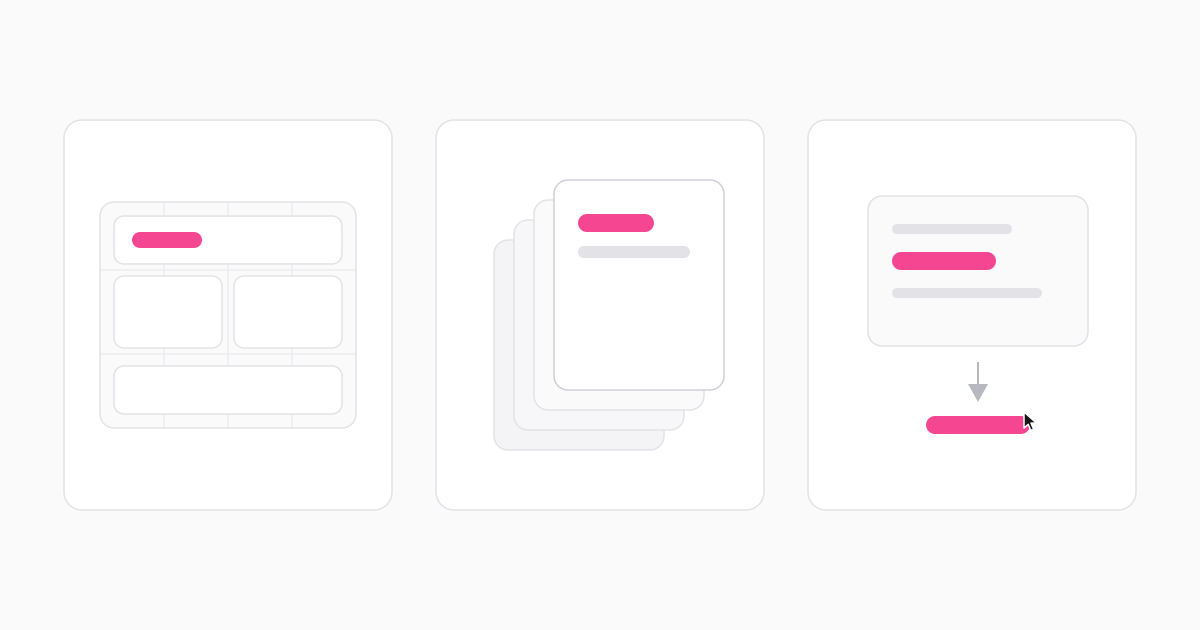
Three side-by-side panels comparing a template canvas with layout blocks, a stack of offset retouching layers, and a one-click AI text replacement

In short: Canva helps you design. Photoshop helps you control every detail. A dedicated AI image text editor helps you change the words already inside an image.

Quick answer

  • Choose Canva if you want to create or redesign a visual.
  • Choose Photoshop if you need professional control over the image.
  • Choose an AI image text editor if you only need to replace existing text quickly.

What does it mean to edit text in an image?

When text is part of a JPG, PNG, screenshot, or photo, it is usually not an editable text layer anymore. The words have been flattened into the image pixels. That means you cannot always click the text and type something new as you would in a document or a layered design file. You may need to identify the original text, remove or replace it, and make the new text fit the surrounding design.

Common examples include:

  • Changing “Summer Sale” to “Winter Sale”.
  • Replacing “$99” with “$79”.
  • Correcting a spelling mistake in a poster.
  • Updating a date on a social media graphic.
  • Changing a button label in a product screenshot.
  • Replacing short product information on a packaging image.

The difficult part is not typing the new words. The difficult part is making the replacement look like it belongs in the original image — matching the font weight, the spacing, the lighting, and whatever texture sits behind the letters.

If you already know the original words and only need to replace them, try the focused AI image text replacement workflow.

Replace Text in an Image

Canva for editing text in images

Canva is primarily a design platform, but it also includes AI-powered tools for editing elements inside images. Features such as Grab Text can help identify text in a photo and make it editable. If you have searched for how to edit text in Canva, this is the feature you are looking for — it extracts lettering from an image so you can work with it as a layer.

A typical Canva workflow may include:

  1. 1.Uploading the image.
  2. 2.Opening the image editing tools.
  3. 3.Selecting the text-editing or text-extraction feature.
  4. 4.Editing the words, font, size, color, or position.
  5. 5.Reviewing and exporting the image.

Canva is a strong choice when you want to do more than replace one word. It works well for users who want to combine text editing with templates, layouts, illustrations, shapes, icons, and other design elements.

Canva works well for:

  • Redesigning a social media post.
  • Adding new text and graphics.
  • Starting from a template.
  • Adjusting the overall layout.
  • Creating multiple marketing variations.

The limitation: Canva may be more than you need if your only goal is to replace one short phrase in a finished image. Depending on the source image, you may still need to correct the font, spacing, angle, size, or position after the text is extracted.

Bottom line

Canva is best for redesigning and customizing visual content. It is not necessarily the shortest workflow for a single text replacement.

Photoshop for editing text in images

Photoshop provides a different type of workflow. If the original Photoshop document still contains editable type layers, changing the text is straightforward: select the type layer, choose the Type tool, and replace the words. That is the quick version of how to edit text in Photoshop.

The process is completely different when you only have a flattened JPG or PNG. In that case, the text is part of the image rather than a separate layer, and you have to rebuild the area by hand.

A typical flattened-image workflow looks like this:

  1. 1.Select or mask the original text.
  2. 2.Remove the text.
  3. 3.Rebuild the background.
  4. 4.Add a new text layer.
  5. 5.Find a similar font.
  6. 6.Match the size, color, spacing, angle, shadow, and perspective.
  7. 7.Export and inspect the result.

Photoshop is a strong choice when you need:

  • Layer-level control.
  • Detailed retouching.
  • Custom masks and selections.
  • Advanced typography effects.
  • Complex image composition.
  • Professional manual editing.

The main drawback is the amount of manual work involved. If you only need to change one price, date, or short phrase in a finished image, Photoshop may be more control than you need — and if you are looking up how to change letters in Photoshop, the honest answer is that it usually means rebuilding the area behind them too.

AI image text editors for quick replacement

A dedicated AI image text editor focuses on one specific task: replacing text that is already inside an image. Instead of giving you a canvas full of tools, it asks for the two things it actually needs — what the image says now, and what it should say instead.

The usual workflow is:

  1. 1.Upload the image.
  2. 2.Enter the original text exactly as it appears.
  3. 3.Enter the replacement text.
  4. 4.Generate the updated image.
  5. 5.Review and download the result.

This workflow is useful when the image is already designed and you do not want to rebuild the whole layout. It can be useful for changing prices, dates, headings, labels, button text, and short marketing messages.

Honest limitations

AI-generated results can vary. The best results usually come from clear images with readable text and a reasonably simple background. You may need to review the output carefully when the image contains:

  • Very small text.
  • Curved or distorted lettering.
  • Handwritten text.
  • Heavy shadows or glow effects.
  • Text over a highly detailed background.
  • A replacement phrase that is much longer or shorter than the original.

This is the focused workflow this editor is designed for: replacing existing words in a finished image without asking you to recreate the entire design.

Upload Image Free

Comparison table: Canva vs Photoshop vs an AI image text editor

Canva, Photoshop and AI image text editors compared by task

FeatureCanvaPhotoshopAI image text editor
Main purposeDesign and layoutProfessional image controlReplace existing image text
Best forTemplates and visual redesignDetailed editing and retouchingFast text replacement
Learning curveLow to mediumHighLow
Works with JPG and PNGYesYesYes
Font matchingMay require adjustmentOften manualAI-assisted
Background repairAI-assisted or manualAdvanced manual toolsAI-assisted
Layer and mask controlLimitedExcellentLimited
Best for one quick text changeGoodOften more complexExcellent
Best for full redesignExcellentExcellentNot the main purpose
Best for professional retouchingModerateExcellentLimited

There is no single best tool for every image-editing task. The right choice depends on whether you want to redesign the image, control every detail, or complete one focused text replacement as quickly as possible.

Which tool should you choose?

Choose Canva if you want to redesign the image, add new visual elements, use templates, or create multiple marketing variations. Choose Photoshop if you need detailed control over layers, masks, retouching, typography, or complex image composition. Choose a dedicated AI image text editor if you already have a finished image and only want to replace the words inside it.

Ask yourself one question: do I want to redesign this image, control every detail, or only change the existing words?

  • Redesign the image:Canva
  • Control every detail:Photoshop
  • Change the existing words:AI image text editor

How to replace text in an image without rebuilding it

If you choose a focused AI image text replacement workflow, the process is simple. There is no font identification step, no layer panel, and no need to reconstruct the background manually.

  1. 01

    Upload your image

    Use the clearest, highest-resolution version you have. A clean JPG, PNG, or WebP works better than a screenshot of a screenshot.

  2. 02

    Enter the text currently shown in the image

    Type it exactly as it appears, including capitalization and punctuation.

  3. 03

    Enter the replacement text

    Keep it reasonably close in length to the original so the surrounding layout still fits.

  4. 04

    Generate the updated image

    The model replaces the words and reconstructs what sat behind them.

  5. 05

    Review the text, alignment, background, and nearby details

    Check the result at 100% zoom before you use it anywhere public.

  6. 06

    Download the result if it looks right

    Keep the original image until you have approved the final version.

What this workflow does not do

The current workflow requires you to enter the original and replacement text manually. It does not require you to identify the original font, but the result may vary depending on the image. It is not a full design suite, and it is not a replacement for Canva or Photoshop when your task is actually a redesign.

Tips for better results

  • Use the highest-resolution version of the image.
  • Enter the original text exactly.
  • Keep the replacement text reasonably close in length.
  • Avoid extremely small or blurry text.
  • Check the result at 100% zoom.
  • Review shadows, outlines, spacing, and background details.
  • Keep the original image until you approve the final version.

For example: replacing “$99” with “$79” is usually a simpler task than replacing “Summer Sale” with a much longer sentence. Similar text length gives the workflow less layout adjustment to make, which is why short replacements are the sweet spot for every tool in this comparison.

Final verdict

Canva, Photoshop, and AI image text editors solve different problems. Canva is the easier choice for creating and redesigning visual content. Photoshop is the strongest option when you need detailed manual control. A dedicated AI image text editor is the most focused option when you already have a finished image and only need to replace existing words.

The simplest rule is:

  • Redesign the image with Canva.
  • Control the image with Photoshop.
  • Change the existing words with an AI image text editor.

Frequently asked questions

Can I edit text in a JPG or PNG?

Yes, but a JPG or PNG usually does not contain a separate editable text layer. You need a workflow that replaces the text while reconstructing or preserving the surrounding image.

Is Canva better than Photoshop for editing text in an image?

Neither tool is always better. Canva is easier for design and layout, while Photoshop provides more detailed control. If you only need to replace existing text quickly, a dedicated AI image text editor may require fewer steps.

Can Photoshop edit text in a JPG?

Photoshop can edit text directly when the original document contains an editable type layer. In a flattened JPG, you usually need to remove the original text, repair the background, and add a new text layer.

Can AI keep the same font?

AI tools can try to match the visual style of the original text, but results vary depending on the font, image quality, perspective, background, and replacement length.

What is the easiest way to change words in a picture?

For a quick replacement, upload the image to a dedicated AI image text editor, enter the original wording, enter the replacement, and review the generated result.

If your task is simply to change the words already inside an image, upload your image, enter the original text and the replacement text, and generate an updated version without rebuilding the entire design.

Replace Text in an ImageSee how screenshots are handled

RELATED

Keep reading

  • Edit text in a screenshot step by step
  • Remove text from an image
  • Edit numbers and prices in an image
Edit Text

Replace words already inside a finished image, compare the result with the original and download the edited file.

Contact ussupport@rewordimage.com

Tools

  • Edit text in image
  • Change a date in an image
  • Edit numbers and prices
  • Remove text from image

Site

  • Pricing
  • Blog
Reword Image

© 2026. All rights reserved.

Acceptable usePrivacy policyTerms of serviceRefund policyAbout