

How to Change Text in an Image: Four Routes
Changing text is four jobs, not one. Which route you take depends on the file you actually have.
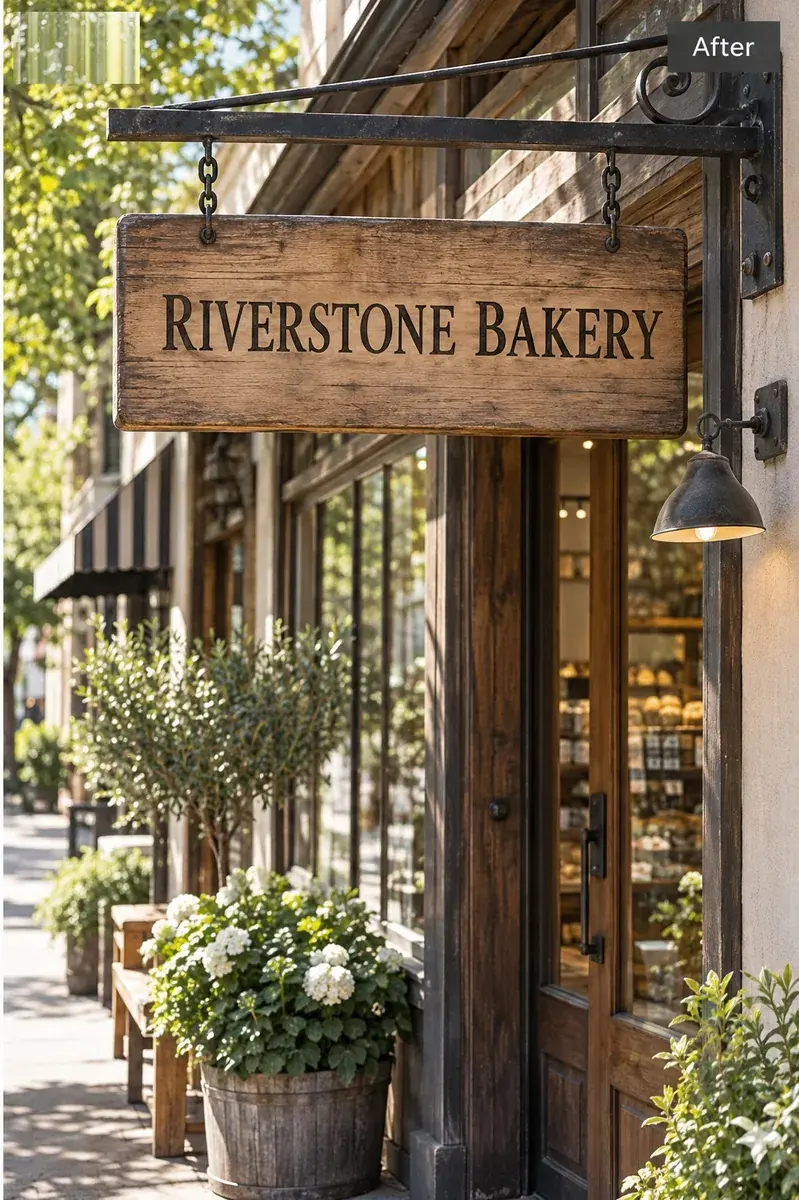 After
After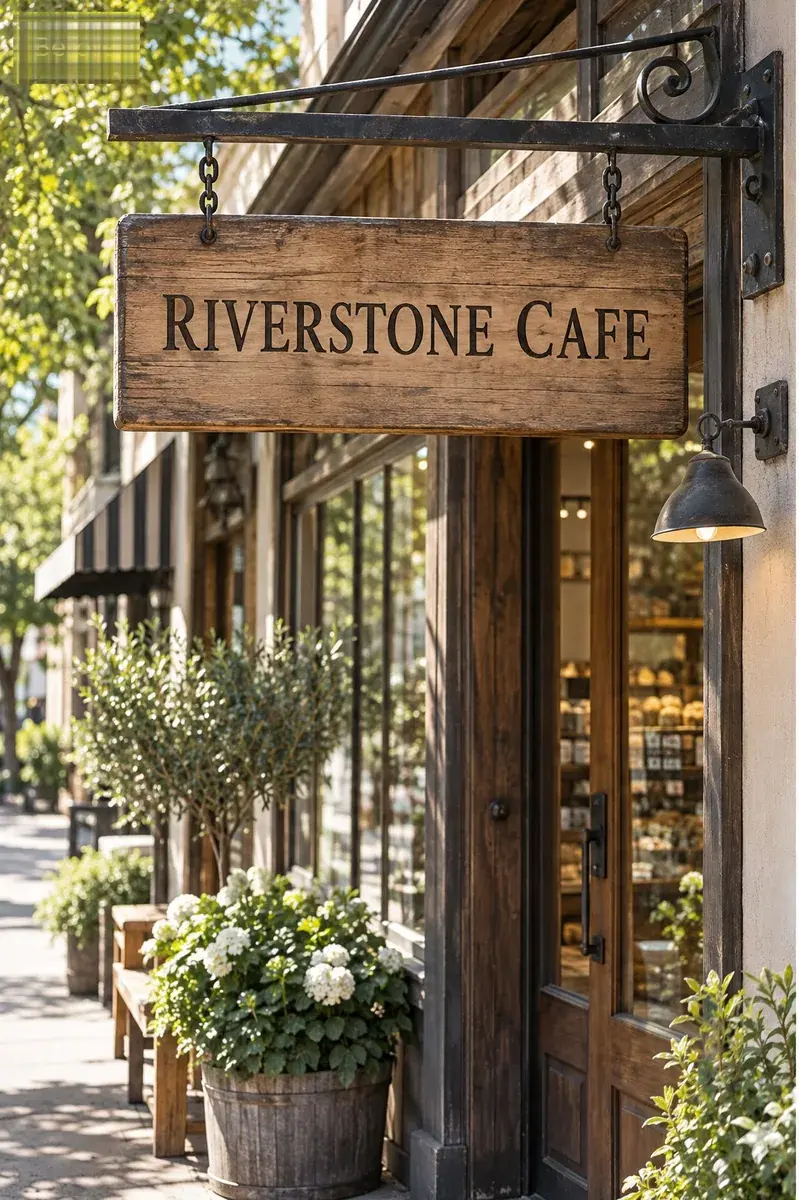 Before
Replace existing text
Your original image stays untouched.
Generate without signing in. A Google sign-in is only needed to download the file.
Please do not upload ID cards, passports, bank statements, official documents or anything intended to mislead someone.
- First edit free
- Preview before download
- JPG, PNG, and WebP
How-to11 min read
Quick answer
If the image is a flat export - a JPG, a PNG, a screenshot, a photo - there is no text layer to edit, so changing the words means replacing the pixels that form them. The cheapest reliable route for a short change is to type the old wording exactly as it appears and the new wording exactly as it should read, then let a tool redraw that area to match the lettering already there. If the layered source file still exists, open it instead: that route is free, exact, and always faster than any repair.
First: does the image still have a text layer?
A text layer is editable type sitting on top of the artwork. Screenshots, phone photos, JPEGs downloaded from a website, and anything exported for print all have their type flattened into pixels, which means the letters are shapes now, not words. You cannot select them, restyle them, or spell-check them.
There is a quick way to tell. Open the file in an editor that shows layers. If the layer panel shows a single background layer named after the file, the text is gone. If it shows text layers you can double-click, the file is editable and you should stop reading the rest of this article. The same test in a PDF: try dragging across a word. If it highlights as text, the PDF still carries the type and can be edited in a PDF editor. If it drags as a rectangle, the page is a picture inside a PDF container.
What the file actually contains decides the route
| What you have | Is the text editable? | Route |
|---|---|---|
| PSD, AI, Figma, Sketch, or a layered TIFF | Yes | Reopen the source. Nothing else comes close. |
| PDF exported from a design app | Usually yes, sometimes no | Try selecting the text first; fall back to Route 4 if it will not select. |
| JPG, PNG, WebP, HEIC | No | Route 4, or Route 2 if you are willing to retype. |
| Screenshot from a phone or browser | No | Route 4. Screenshots are always flattened. |
| Photo of a printed sign, menu or poster | No | Route 4. Perspective and lighting also have to be dealt with. |
| A Canva design you no longer have access to | No | Route 4. Canva cannot import a flat image as editable text. |
Route 1: reopen the source file
If the design file exists, open it and edit the text object. This is exact: the real typeface, the real tracking, the real colour swatch, no guessing and no visible seam. It also costs nothing beyond the time to find the file.
Two things make this route unusable in practice. The file is often owned by whoever built the artwork rather than by whoever needs the change, and asking for it can take a day or a week. Or the file exists but was saved by a version of the app nobody has installed any more, which turns a two-minute edit into a font-substitution problem. When the change is one price on a menu that goes up every fortnight, waiting on a file transfer is the reason people start looking for another route in the first place. Replacing text without the source file
Route 2: retype over the old words
This is the manual route, and it is the one most guides describe. You open the image in Photoshop, Photopea or GIMP, cover the old wording, and type the new wording on top. It works, and on flat colour with a known font it works well.
Identify the typeface, or accept that you cannot
If the artwork came from a template you still have, the font name is in the file. If not, you are matching by eye against a catalogue. Expect a near-identical free face rather than the exact commercial one, and expect the difference to be visible in the numerals and the lowercase g.
Remove the old letters without leaving a ghost
Clone stamp, content-aware fill, or solid colour over a flat background. The failure mode here is a faint halo or a soft rectangle where the old letters used to be, visible the moment the image is shown at full size or on a large screen.
Retype at the right size, tracking and colour
Match the cap height rather than the point size, then adjust letter spacing until the new word occupies the same width as the old one. Sample the colour from the original strokes rather than picking from a swatch panel; screen-rendered text is rarely pure black or pure white.
Check the result at 100 percent, not fitted to window
Almost every manual retype looks right when the whole poster fits on screen and wrong at 100 percent, because the difference is in the stroke weight and the anti-aliasing, not the shape.
Where this route quietly fails
Curved lettering, perspective on a photographed sign, and any text sitting over a photograph or texture. Covering type over a gradient destroys the gradient, and no amount of retyping restores it. Those cases are the reason Route 4 exists.
Route 3: rebuild it in Canva (and why that often does not work)
The instinct is to drop the image into Canva and type over it. That does work for one thing only: adding new text on top of the picture. It does not remove the old words. Canva can import an image as a background, and a background is not editable type, so the old wording stays exactly where it was and the new wording sits on top of it.
The rebuild route only makes sense when the layout is simple enough to reproduce from scratch: a headline, a date, a logo, flat colour. Then you are rebuilding a design rather than editing an image, and the result will not be pixel-identical to what the client already approved. For a poster where the layout is the asset, that is a downgrade dressed up as an edit.
Route 4: replace the words in place
The fourth route treats the existing lettering as the reference. You tell it which words are already there and what they should say instead, and it redraws that part of the picture so the new wording inherits the weight, spacing, colour and alignment of the words around it. No font file, no layer, no rebuild.
Upload the image you already have
A JPG, PNG or WebP up to 10 MB works. Nothing is redrawn outside the area being changed, so the rest of the picture is not re-rendered.
Type the current words exactly as they appear
Case, punctuation and digits matter. "OPEN 7 DAYS" and "Open 7 days" are different inputs, and the tool needs the string that is actually on the image. A partial word is unreliable - type the whole word, not the two letters you want to swap.
Type the replacement exactly as it should read
Include the capitalisation and any punctuation. Most results that look wrong at a glance are wrong because of a trailing period, a missing capital or a hyphen that was in the original and not in the replacement.
Review the changed area at full size before you publish
Check the stroke weight against the neighbouring words, the gap after the new word, and whether the line is still level. Then check the one thing people forget: whether anything else in the frame moved.
Keep the replacement roughly as long as the original. A short word swapped for a long phrase changes how the line sits, and that is a layout change rather than a text change, so nothing that matches lettering can hide it. When the replacement needs to keep the exact lettering
What each route actually costs
Time and cost for one short change, by route
| Route | Time for one change | What you spend | Best for |
|---|---|---|---|
| Reopen the source | 2 to 10 minutes | Nothing | Anything where you still have the file |
| Retype manually | 15 to 45 minutes | An editor subscription or a free alternative | Flat colour, known font, one line |
| Rebuild in Canva | 30 to 90 minutes | Template time, plus losing layout fidelity | Simple layouts you are willing to change |
| Replace in place | 30 to 90 seconds | One credit, about $0.20 | Flat images where the layout is the asset |
The comparison that matters is rarely software price. It is the designer round trip: a $50 to $200 invoice and a two-day turnaround for a price that changed by 25 cents. For a business that reprices weekly, that arithmetic decides the route before any tool does. Editing prices and numbers in an image
Which route should you take?
- You have the layered file:Route 1. Open it. Editing pixels when the text is still editable is strictly worse in every dimension.
- Flat image, one short change, layout must not move:Route 4. This is the case it was built for, and the only case where 90 seconds is realistic.
- Flat image, and the typeface must be exact:Route 2, and get the font name from whoever made the artwork. Pixel replacement matches appearance, not typeface identity.
- Flat image, but the whole design is wrong:Rebuild it. A single-word edit is the wrong tool for a design that needs rethinking.
The four ways a changed word still looks wrong
- The font is close but not the same. Visible in the numerals, the lowercase g and any distinctive single letter. Nothing fixes this except the actual typeface.
- The new word is slightly sharper or heavier. Retyped or regenerated text is drawn at a clean resolution and then scaled, so it can read crisper than the surrounding words that went through a camera or a lossy export.
- The old letters left a trace. A faint box, a smudge, or a texture that does not continue through the changed area. Most obvious on gradients and on any surface with grain.
- The line moved. A longer replacement pushed the words beside it, or a shorter one left an obvious gap. This is a layout problem that shows up as a text problem.
What no route can do
You cannot recover the original font file from a flat image, so a replacement can match how the lettering looks but cannot hand you a typeface to reuse elsewhere. You also cannot undo a replacement in the result - once the pixels are redrawn, the old wording is gone from that file. Keep the original upload until you are sure.
Have an image where a few words have to change?
When you should not change the text at all
Editing your own marketing material is ordinary business. Editing a document to misrepresent it is not, and the line is clearer than people pretend: identity documents, certificates, bank and payment records, receipts, invoices, tickets and booking confirmations, and chat or transaction screenshots are all off limits. So is anything designed to make a third party believe something false about who said what, when, or for how much. A restaurant putting the prices for next week on its own menu is not the same job as a screenshot that shows a refund that never happened, even though the software is identical.
Frequently asked questions
How do I change text in an image without Photoshop?
Type the words that are already in the picture and the words you want instead, then let a browser tool redraw that area. There is no layer to work with, so the result is a pixel replacement rather than a text edit - which is why the input has to be the exact current wording.
Can I change text in a JPG?
Yes, by replacing the pixels that form the letters. A JPG has no text layer, so you cannot select or restyle the words. The practical consequence is that the replacement has to be built from the visible lettering rather than from a font.
Why does my edited word look slightly different from the rest?
Usually a sharpness or weight mismatch rather than the wrong typeface. Regenerated text is drawn cleanly and then blended back into a compressed image, so it can read a little crisper than the words beside it. Compare at 100 percent and run it again if the difference is obvious.
Can I change several words at once?
One replacement per run. If five lines need changing, that is five runs, each with its own free edit or credit. Changing a whole block of copy in one pass is a redesign, not an edit.
Does changing the text change the image size or resolution?
The output is rebuilt at a working resolution rather than copied byte for byte, so the pixel dimensions of the result will not always equal the upload. If you need an exact size for print, check the output dimensions before sending it to a printer.
Can I get the original font back from the image?
No. A flat image stores pixels, not outlines or font metadata. A font identifier can suggest a lookalike, but the original typeface cannot be extracted, and a licence for it does not transfer to the picture.
What if the words are curved or on a slanted surface?
Those are the hardest cases. Curved lettering and perspective are re-described rather than measured, so a replacement can land close without landing exactly. Check the result at full size, and expect that some images need a second attempt.
Is it faster to just rebuild the image?
Only when the layout is genuinely wrong. Rebuilding means recreating the typography, spacing and every other element, which is slower and produces a file that no longer matches what was approved. For a one-word change, repairing the pixels is the smaller job.